Create an explainer with procedural drawings and music

Reusing a scene works best when its parts retain meaning. A fish illustration with editable numeric parameters can change proportions without becoming a different pile of imported paths. A semantic palette can restyle a drawing while preserving its geometry. A music brief with a known seed can produce another local variation when the pacing changes.
Scribe Animator brings these ideas into an editable project through two distinct workflows: supported agent capabilities create and revise procedural drawings; the Desktop Audio panel generates local procedural music. Neither workflow requires flattening the entire scene before you can preview it.
Choose the right creation surface with Mobile Lite, Desktop Studio, and agent-assisted authoring. The advanced creation workflows here use Desktop; native playback and the manual controls available after import are separate checks.
The drawing contracts and source tests were reviewed on 7 October 2026. The Miso example adds actual deployed Desktop import, drawing-frame inspection, position editing, music generation, and portable reimport captures from 8 October 2026. The deployment commit was not verified. These checks do not certify a fresh agent client, a visible progress retime, listening quality, native-device video export, or every encoder's fades.
Try it: move Miso and give the scene a music bed
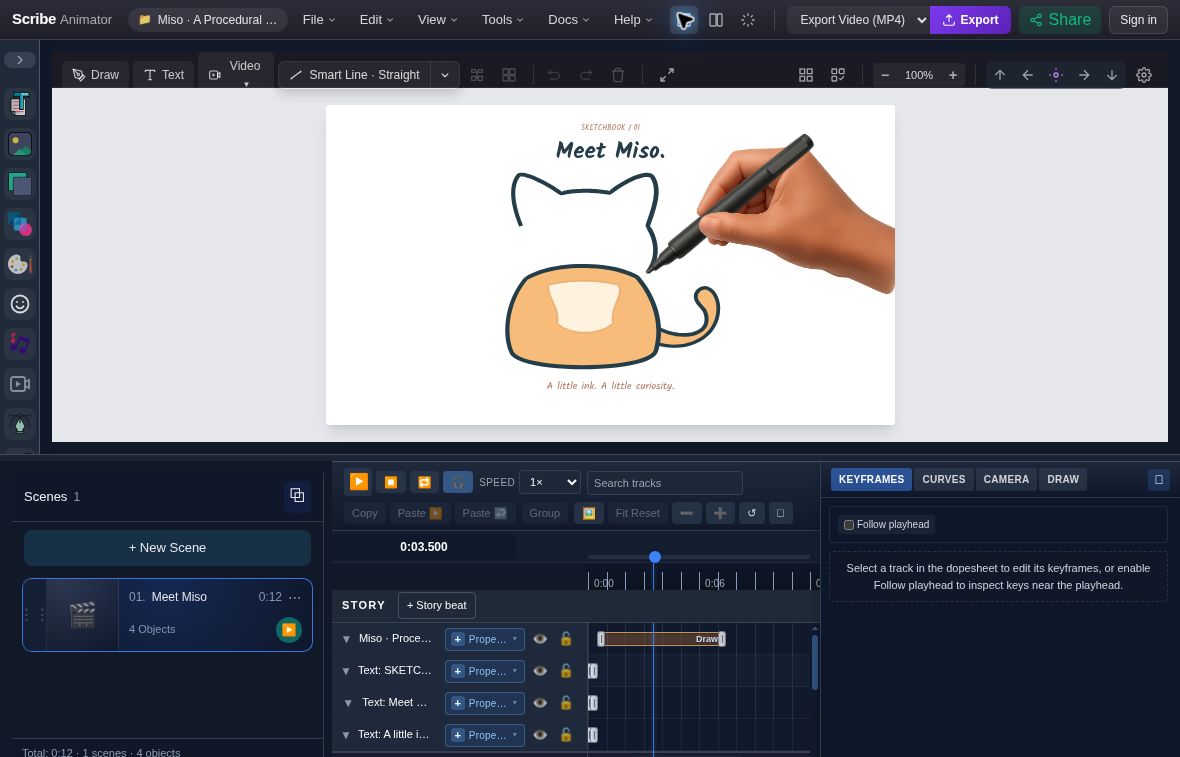
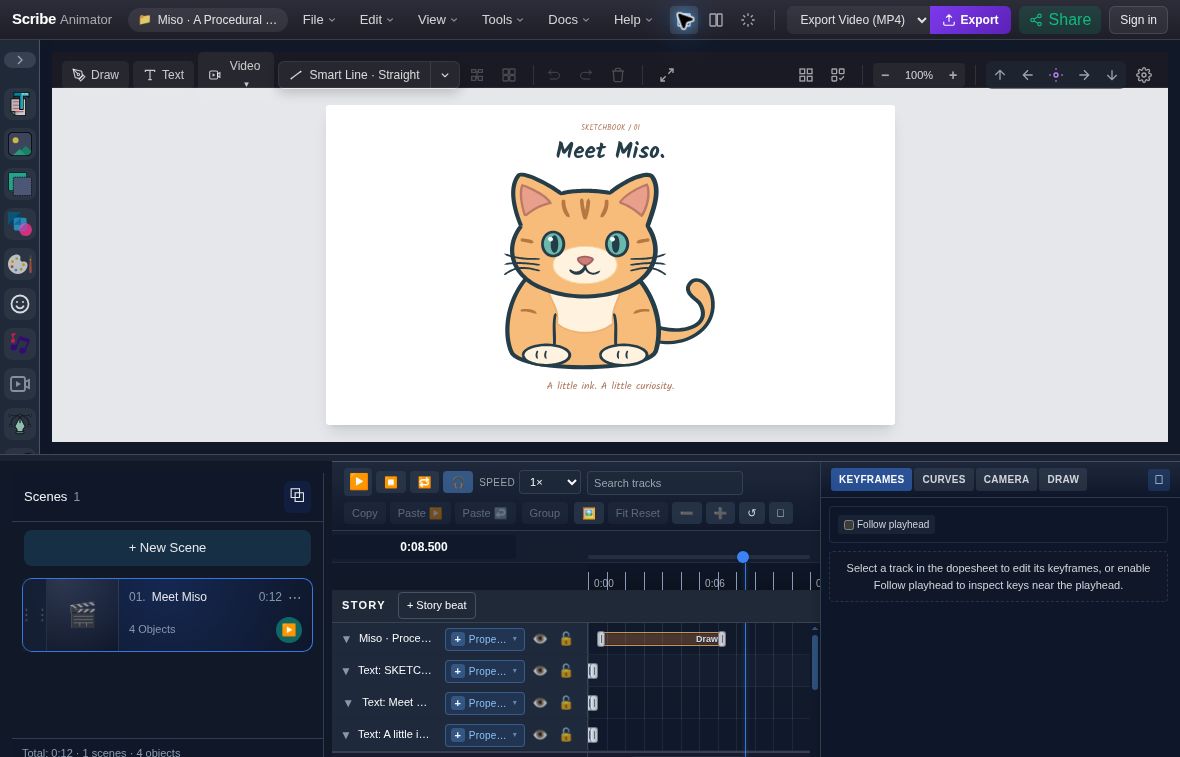
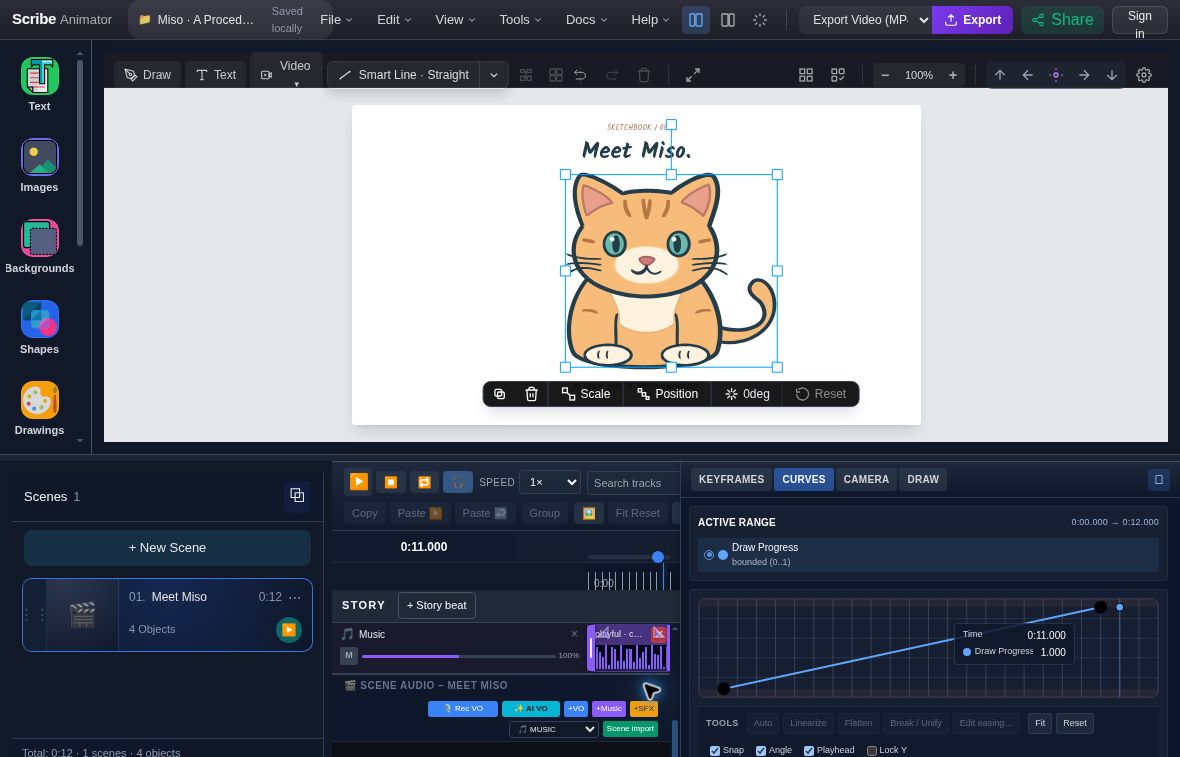
The original Miso project contains one 12-second scene, a procedural cat, three native Text objects, and packaged hand/pen assets. Open it with File → Import .scribe and compare 3.500 seconds, when the hand is drawing the cat, with 8.500 seconds, when the illustration is complete.
Select Miso · Procedural Cat, open Properties → Basics, and change X from 600 to 720. At the same 11.000-second playhead, the cat moves right while the title stays independent. This is a visible placement revision to one native object; the recipe remains editable data.
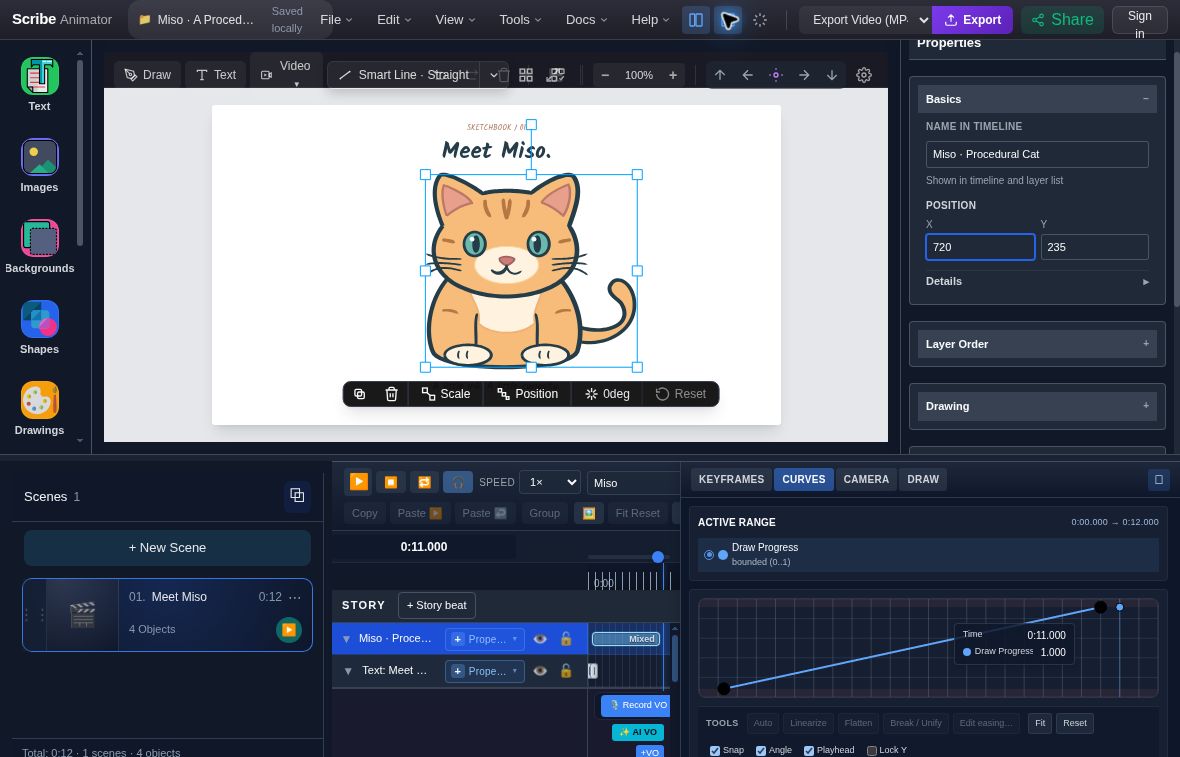
Miso also makes two limits concrete. Every one of its 32 marks owns an authored color, so changing Base Ink stores a new value without recoloring those marks. A separately added Draw Progress curve did not visibly retime its existing 0.650–7.300-second Draw Step in the captured session. Inspect the owning draw schedule instead of assuming a new property lane replaces it. The procedural walkthrough supplies the matching recipe, before/after captures, and separate inspection copy.
Choose a drawing you can revise
A Procedural Drawing is a native object backed by validated declarative data. Its recipe describes marks, fills, coordinate frames, attachments, and optional internal motion. The editor reconstructs the rendering geometry and ink from that source. Ordinary placement, drawing hands, timeline timing, camera targets, duplication, and supported persistence remain part of the same project workflow.
Start with a trusted component when its subject fits your scene. The current catalog includes fish, seaweed, bubbles, browser, server, database, API, AI agent, laptop, phone, document, and lightbulb subjects. Search the catalog, inspect the exact component version and revision, and use its documented parameter IDs and numeric ranges. A meaningful change such as tail size is easier to review than asking for an unspecified “better fish.”
The public authoring tools use the fixed trusted catalog. They do not install uploaded component implementations or execute arbitrary recipe programs. There is no current component browser or Drawing Score authoring panel in the editor. Use a compatible Desktop agent client to discover the capabilities, or import validated portable data through the documented AI JSON workflow.
Make the drawing process explain the subject
An illustration's final state and its drawing order are different design choices. Construction marks may help establish a subject before the contour arrives, then become distracting once the drawing is complete. A Drawing Score assigns the semantic marks to parts, layers, and ordered steps. Layers can remain, ghost, or hide after the relevant work finishes.
For a simple card, a score might show a construction guide, draw the outline, then add an accent. The guide can fade to a low opacity after the outline is complete. This changes the visibility of existing marks; it is not an eraser-hand animation. The outer Draw Step or draw-progress timing still determines when the object is revealed in the scene.
Keep the score complete when revising geometry. Repeated marks and generated hatch details have IDs that must participate in score coverage. A geometry change that invalidates those references needs an intentional score revision; the editor does not silently discard the score to accept the change.
Restyle without rebuilding geometry
Semantic palettes apply colors and bounded ink styling to roles such as outline, construction, detail, accent, highlight, and shadow. One placed copy can use a different palette from another. The roles come from the recipe; a palette does not guess which unlabelled stroke represents a shadow.
Tone regions add bounded hatch detail in a world, local, or body coordinate frame. They are useful when texture or shadow should stay registered while the subject moves. Generated details remain reconstructed data. Dense hatching can exceed work or geometry budgets, so simplify the region or increase spacing before adding more detail.
Use the procedural drawing guide for catalog discovery, a complete small recipe, Drawing Score, palettes, tone limits, and recovery. Keep the seed and semantic IDs stable when a revision should preserve the drawing's character.
Separate internal motion from travel
A recipe's local motion evaluates its own phase. Draw progress controls its reveal. Path Follow controls the placed object's travel along an external route. These can coexist, but they do not mean the same thing. A moving fish that is only half drawn should remain attached to its semantic hand route, while its host position follows the intended scene motion.
Preview partial drawing progress and several motion phases. Scrub backward and jump directly to a later timestamp as well as playing from the beginning. Save and reopen the project to check the authored source and timing. The retained recipe, seed, palette, score, and component source matter more for future editing than a cache of rendered paths.
Give the scene a local music bed
Once scene durations are reasonably settled, open Audio → Generate Music in Desktop. Choose the entire project, current scene, or a custom 2–180-second duration. Pick a style, primary mood, optional later mood, ending, intensity, and variation seed. Minimal is a restrained starting point under speech; the other styles offer different bounded arrangements.
For Miso, the actual worked brief uses Entire project · 12.0 s, Playful,
curious → playful, Resolve, 35% intensity, and seed
docs-miso-20261008. The captured route is
Tools → Advanced Audio Editor → Generate Music.
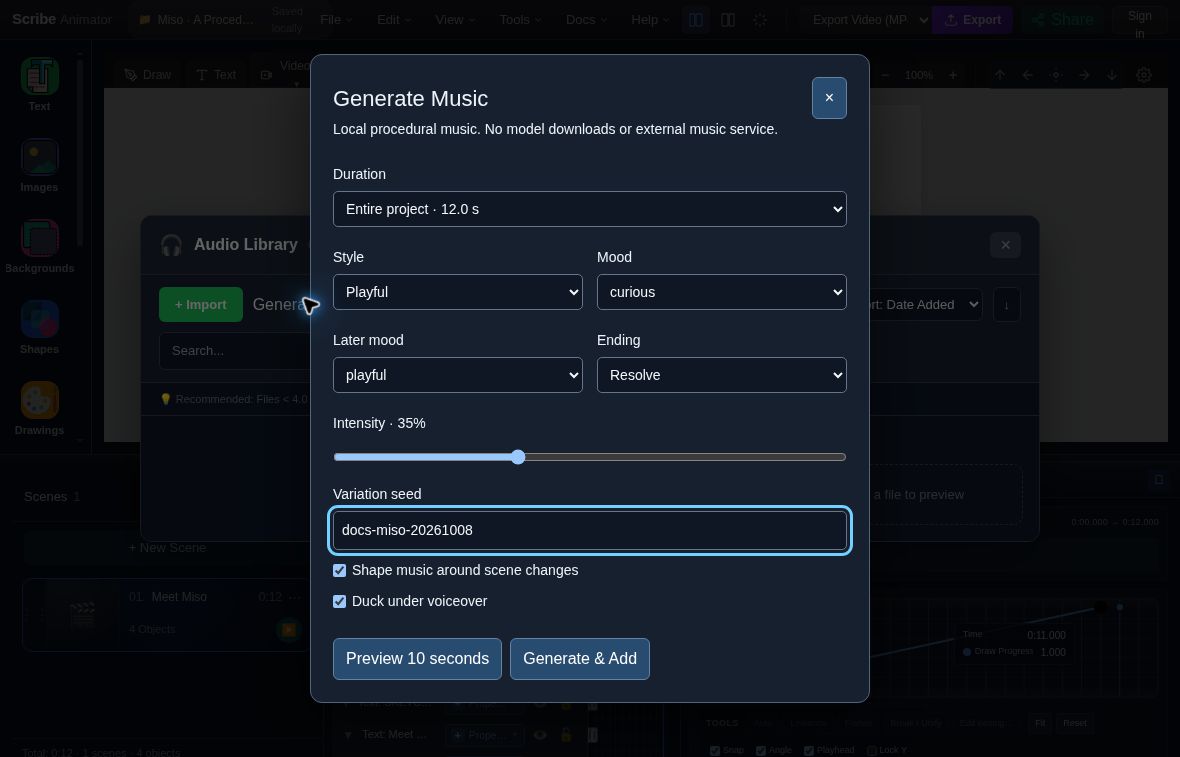
After Generate & Add, one 12-second MUSIC clip appears at project offset 0.
Download the actual generated WAV and generation metadata, or open the complete position-and-music project. The portable project embeds the same WAV as an uploaded MUSIC source and includes the hand/pen PNGs. Keep the metadata sidecar for the brief and seed. The music walkthrough includes a player, exact settings, native-reopen checks, and checksums. The review verified audio bytes and placement; listening quality was not assessed.
Use Preview 10 seconds to audition a short result before inserting anything. Then Generate & Add renders the full brief and places a MUSIC clip. The generator synthesizes locally without downloading a music model or calling an external music service. It does not generate a voice, lyrics, or a requested commercial recording.
Shape music around scene changes includes scene-boundary cues in the music plan. It does not rewrite the animation or regenerate automatically after a scene edit. When the pacing changes, make another deliberate generation and review the new ending and placement. Keep the seed when you want a repeatable brief; use a variation when you want another candidate.
Mix, save, and check the delivery
Use VOICEOVER tracks for narration and MUSIC tracks for the bed. Automatic ducking lowers MUSIC during active VOICEOVER clip intervals. It does not detect individual spoken words or gaps inside a long narrator clip, and a GENERIC track does not supply the same narration role. Adjust music gain and preview the actual combination rather than assuming low generation intensity equals low playback volume.
Save a local checkpoint and a portable .scribe package. Save to Audio
Library in the generator is explicitly local; it is a different destination
from a private cloud library. Supported packaging preserves generated audio
bytes and provenance, while import does not prove that the source was generated
on the receiving device. Check a native reopen before treating a package as a
complete handoff.
The music tutorial covers every current control, placement, seed, duration, ducking, and persistence constraint. For final delivery, inspect an actual MP4 from the target platform. Stored clip-fade metadata alone does not establish every encoder's audible fade behavior.
Continue with voiceover and music planning for sound design, or editable motion recipes when a semantic journey or proof point is the next part of the story.