Which Scribe experience should I use?
Choose Mobile Lite for touch editing, Desktop Studio for detailed work across several panels, and agent-assisted authoring for structured drafts and supported semantic creation tools. You can combine them around an editable Scribe project. Their authoring controls, audio scope, and export routes differ.
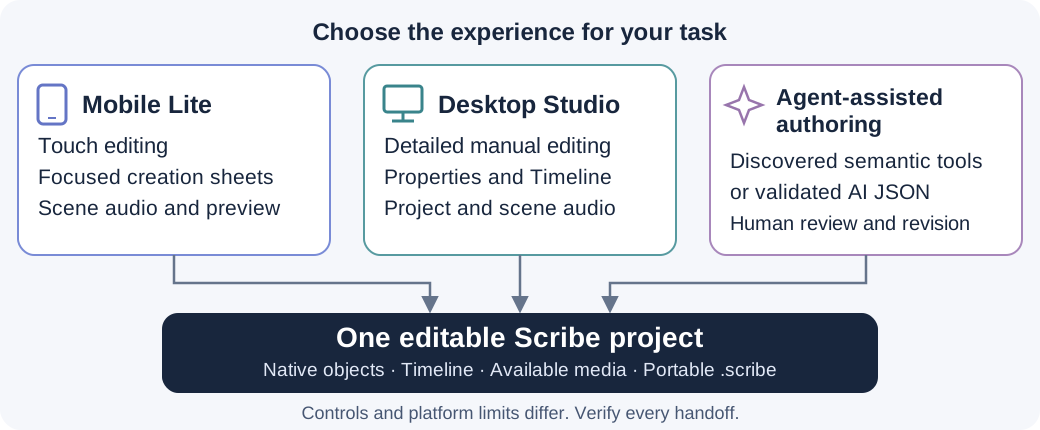
Choose by the work you want to finish
| When you want to… | Start here | Open it |
|---|---|---|
| Create or revise a short animation with touch controls | Mobile Lite | Mobile Lite on the web, or the iOS/Android app |
| Arrange content precisely, inspect keys, or mix project-wide audio | Desktop Studio | Desktop web editor |
| Draft editable scenes from a brief or use procedural and motion creation tools | Agent-assisted authoring | A compatible client with discovered Site tools, or an assistant that can draft validated AI JSON |
Mobile Lite is the /m web route. Reducing the width of the Desktop page
does not switch to Mobile Lite. Agent-assisted authoring works through the
editor's supported tools or JSON importer; it does not open a separate project
store or supply its own video renderer.
Create, manually edit, play, and export
The matrix describes the supported workflow. Check the capability, object type, browser or device, and plan before relying on a particular advanced action. On a narrow screen, swipe the tables sideways to compare their columns.
| Experience | CREATE | MANUAL EDIT | PLAY | EXPORT |
|---|---|---|---|---|
| Mobile Lite | Text, drawings, assets, and scenes through focused sheets; validated AI JSON through Project Files | Touch transforms and the controls exposed for the selected object, scene, or timeline | Shared project playback through the mobile workspace; inspect the actual receiving device | Video through the mobile Export sheet when its encoder is available; .scribe through Project Files |
| Desktop Studio | Canvas tools, imports, templates, and local Generate Music; advanced semantic creation with a compatible agent | Canvas, Properties, Timeline, keyframes, camera, project and scene audio | Play, seek, and inspect the scene and camera in the editor | Supported video export and portable .scribe, subject to browser and plan limits |
| Agent-assisted authoring | Discover supported live capabilities; or draft AI JSON for reviewed manual import | The human continues in either UI; agent revisions need an available capability for that platform | Request supported preview/playback and inspect results; the user still reviews readability and sound | Use the editor's supported export workflow and verify the actual output; permissions and platform limits still apply |
Editable playback is broader than authoring UI. Mobile Lite uses the shared renderer for an imported Procedural Drawing, but that does not add a recipe, component, palette, or Drawing Score editor to its sheets. The advanced agent creation families below are Desktop-only in the reviewed capability contracts. Other capabilities have their own platform declarations; discover each one.
Mobile Lite: create and revise with focused sheets
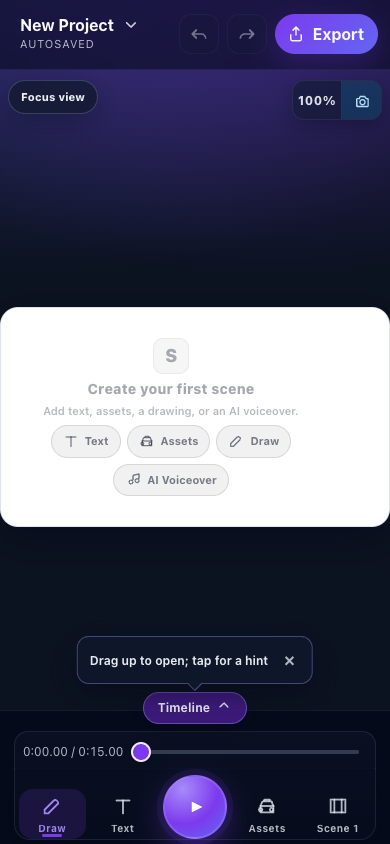
- Project menuReach project save, import, and portable export actions.
- TimelineExpand timing controls, then return to the canvas for selection and editing.
- Touch creation and playbackDraw, Text, Assets, and Scene open focused workflows; the center control plays the project.
Follow the Mobile Lite walkthrough for sheets, drawing, camera, voiceover, and video settings. Save before switching projects or starting a guided lesson. Mobile web, iOS, and Android differ in file access, model and memory limits, and video encoding.
Desktop Studio: inspect and refine several owners together
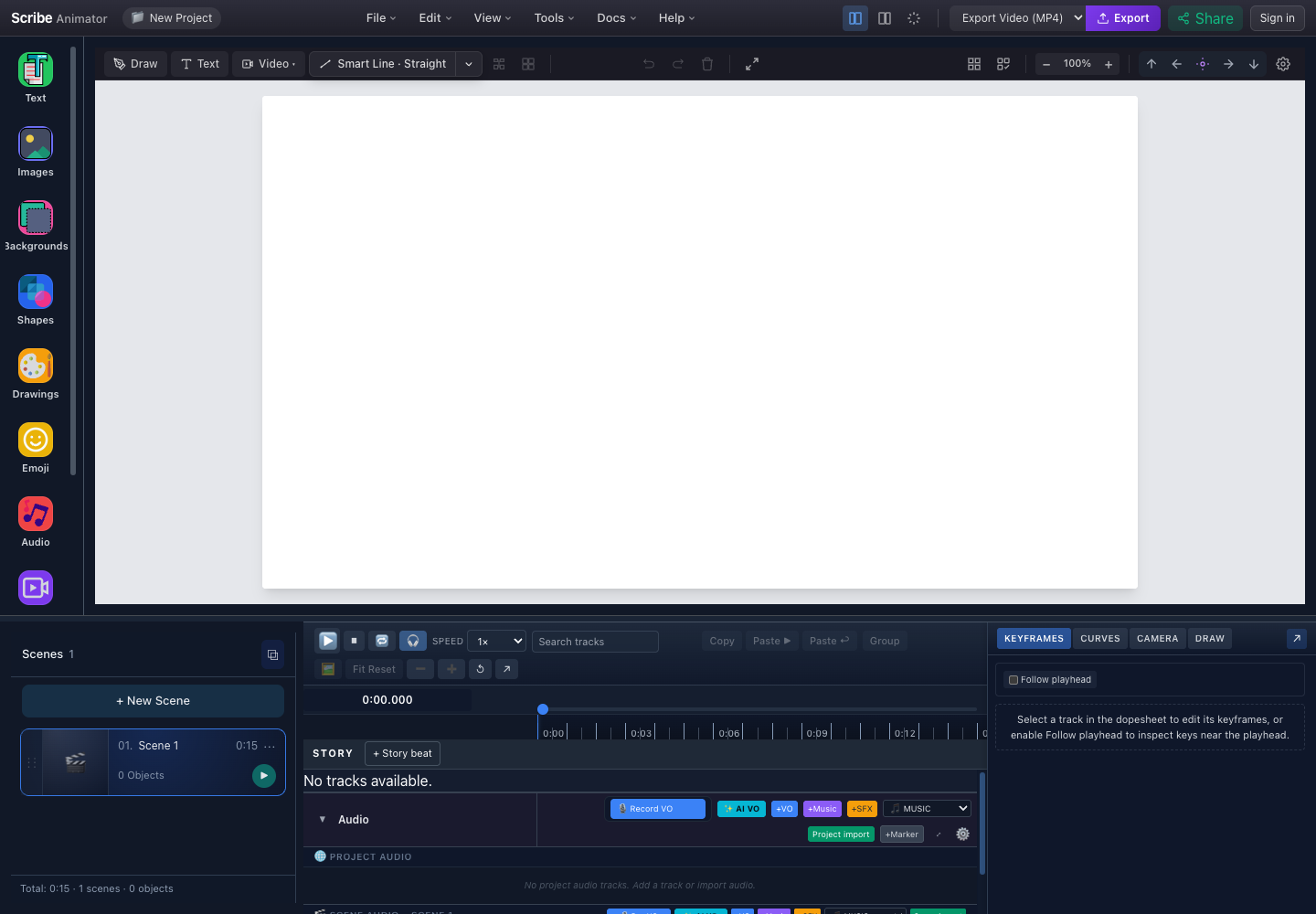
- Creation railOpen content libraries and import or create native objects.
- Detailed timingInspect selected keys, curves, camera, or Draw data alongside the canvas.
- Audio scopesDesktop exposes project and scene audio. Mobile Lite audio editing has a scene boundary.
Use the workspace tour to locate each owner. Native text, artwork, and motion remain separate objects or authored data after structured creation. Changing a card does not automatically move an independent title, and a new progress curve does not necessarily replace an existing Draw Step.
Which creation controls require an agent?
| Task | Agent-assisted authoring in Desktop | Manual UI and handoff limits |
|---|---|---|
| Create or revise a procedural recipe or trusted component | procedural.create, procedural.update, and the discovered procedural.component.* actions | Desktop offers base ink and motion controls and drawing-process inspection. It has no component browser or Drawing Score authoring panel. Mobile can render the imported object without those creation controls. |
| Author drawing construction order, semantic palettes, or bounded tone | The discovered Drawing Score, palette, and tone contracts described in Procedural drawings | Base ink changes affect marks without authored overrides. Drawing-process diagnostics are inspection, not score authoring. |
| Assemble request flows, comparisons, metrics, device views, or kinetic titles | The five motion.* recipes described in Editable motion recipes | There is no motion recipe picker. Edit the resulting native text, transforms, and eligible timeline data through the controls the UI exposes. |
| Generate local instrumental music | The audio.music.* family supports planning, generation, insertion, and source inspection | Desktop also has a real Generate Music panel. Mobile Lite has no matching generator control; an imported WAV can use its scene audio workflow. |
The broker uses scribe_search_capabilities, scribe_get_capability, and
scribe_execute_capability. Installing Director supplies instructions and an
offline validator; it does not supply Site tools to a client that lacks them.
Follow the Site tools quickstart
and inspect availability before asking for a live mutation.
Keep scene audio and project audio distinct
Desktop can mix project-wide and scene tracks. Mobile Lite's audio panel edits the current scene's MUSIC and VOICEOVER tracks. In the reviewed Mobile Lite loading path, project-wide MUSIC/VOICEOVER clips are moved to the scene containing their start, converted to scene-local placement, and end-trimmed when needed to fit that scene. A bed spanning several Desktop scenes can therefore be shortened.
Keep a Desktop .scribe backup before this handoff. Open each receiving scene,
check the clip placement and length, listen across scene transitions, and verify
a short export there. The Generate Music tutorial
uses a project Music lane; its one-scene Miso example does not certify a continuous
multi-scene bed on a phone.
Worked handoff: JSON draft, manual revision, preview, and export
This example uses the AI JSON route with an existing validated three-step
scene. Its actual Desktop import, edits, inspected end frame, save/restore, and
native .scribe export are recorded. A fresh live agent/Director creation session,
continuous playback review, and video export were not run for this example.
1. Ask for an editable draft and validate it
A brief for this kind of handoff can say:
Create one eight-second, 1920 × 1280, three-step process scene. Keep the titles and descriptions as native editable text, with the artwork as separate objects. Use Scribe Template schema 1 and scene-local millisecond timing. Return data-only JSON for validation, then leave manual copy and placement changes to me.
To reproduce the recorded workflow, download the three-step process JSON. This is the supplied candidate used for the checks below; the brief does not guarantee that a new assistant will return the same file. It passes the installed Director 2.0.0 canonical offline validator without errors or warnings.
Save your work, then choose File → Import AI JSON → Project → Choose JSON file in Desktop. Confirm 1 scene, 13 objects, 8s, then choose Create New Project from Scene. Validation checks structure; inspect the imported frame yourself.
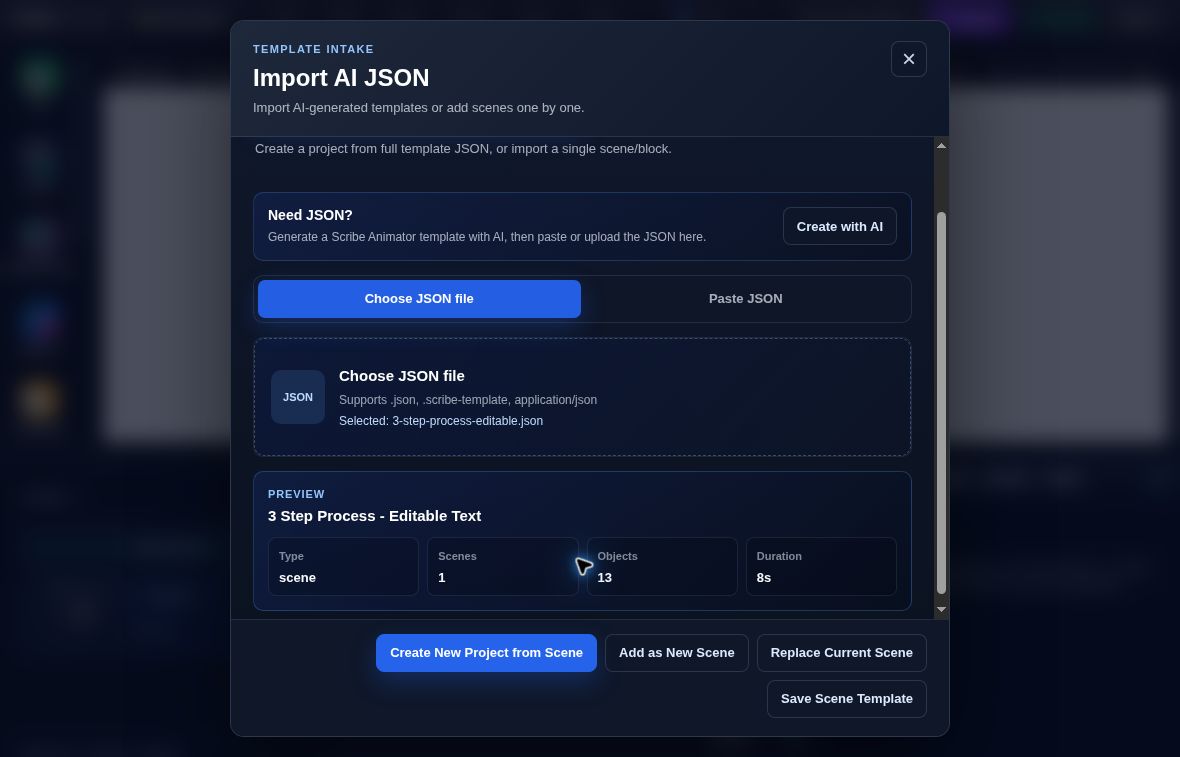
- Candidate summaryCheck scene, 1 scene, 13 objects, and 8s before creating a separate project.
Mobile Lite also exposes Project menu → Project Files → Import AI JSON. That entry was captured below, but the three-step import and revision acceptance record is Desktop. Mobile JSON import does not expose the Desktop-only advanced agent capabilities.
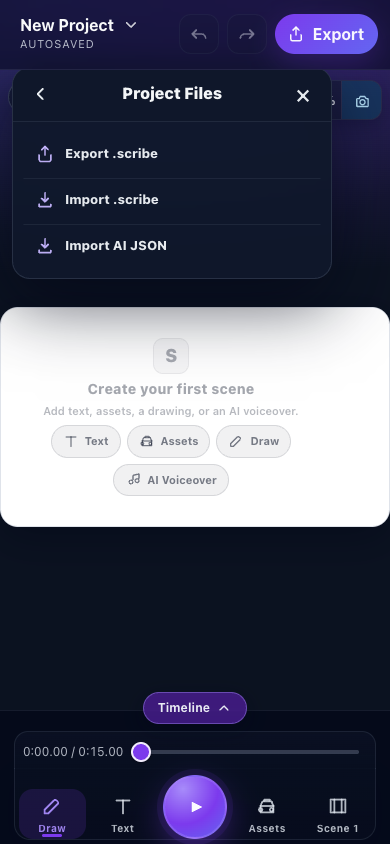
- Import AI JSONReview structured template data through the shared importer.
- Export .scribeUse a native package to carry an edited project and its available assets.
2. Customize the native result by hand
Seek to 8.000 seconds. Search Step 1 Title in Search tracks, select it, and change Properties → Text → Content from Title Here to Plan. Move focus to commit. The other titles remain editable.
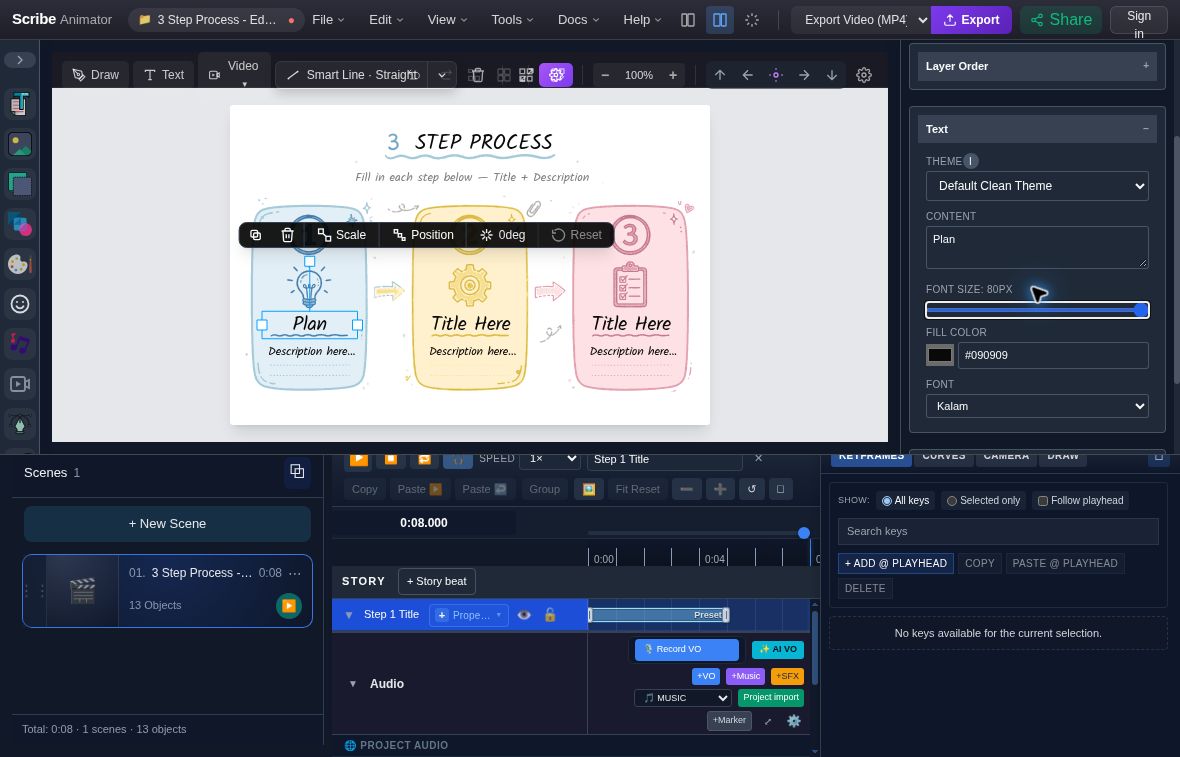
- Edited titleThe selected title changes in the canvas.
- Native ContentThe copy is still editable text.
For a placement exercise, unlock Blue Card Vector and change its Basics → X from 43 to 93. Its separate title keeps X 128. The detailed Director walkthrough shows both placement states; move the title too when your final composition needs it.
3. Preview and keep the editable export
Inspect the completed 8.000-second frame and preview your revised entrances from the start. Read every title and check that the independent artwork stays aligned. The recorded evidence includes the settled frame; a full playback review remains your acceptance step.
Choose File → Save Locally, reload, and Restore. Confirm Plan and the moved card, then choose File → Export .scribe. The actual revised project retains those edits and passes the package importer with zero warnings. Use the download checksums to identify the exact candidate and revision.
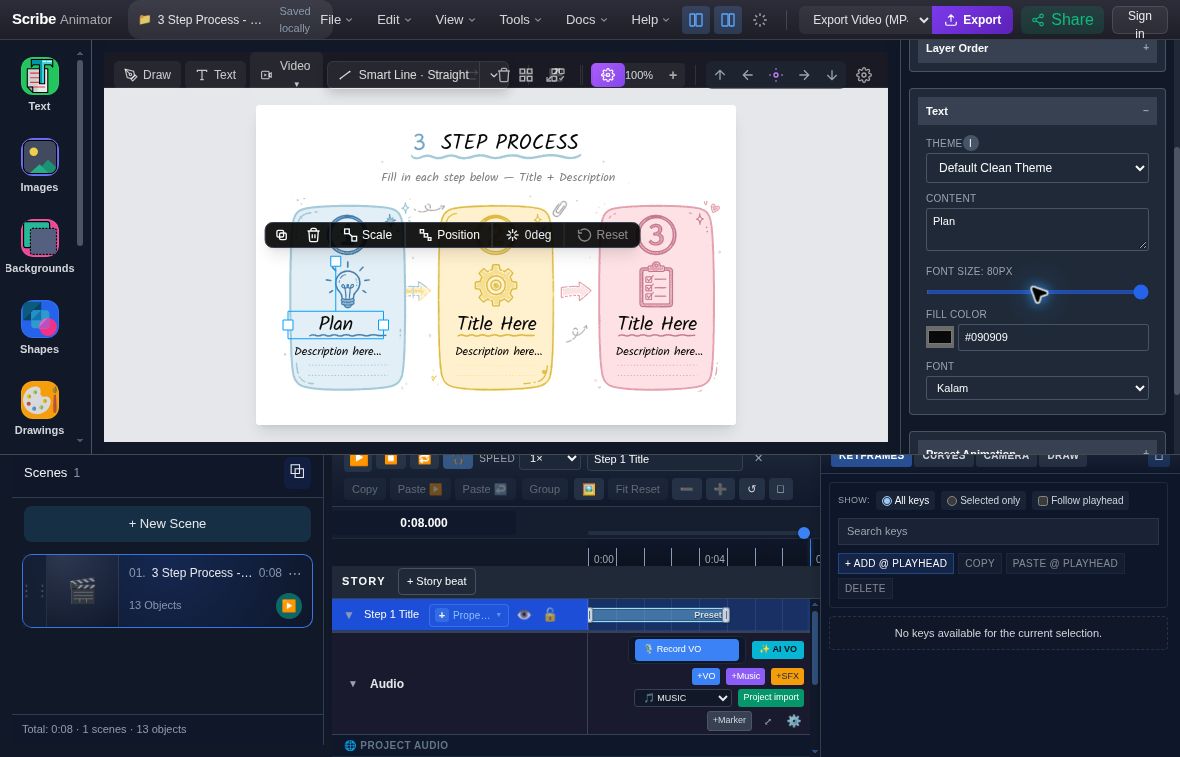
- Saved resultPlan remains in the scene after restore.
- Still editableThe Text Content field retains the native copy.
For MP4 delivery, follow Choose an export, render a
short test on the intended platform, and play the downloaded file. A frame,
stored timing, or successful .scribe export does not certify a video encode.
Verify the handoff and troubleshoot limits
| Check or problem | What to do |
|---|---|
| Expected editable result | Confirm separate objects, native text, intended timing, and available packaged assets after reopening. |
| Site tools are absent | Use validated AI JSON or manual editing. Do not assume that installing a skills package enables browser tools. |
| A procedural control is missing on mobile | Use Desktop agent authoring for the recipe or component; use Mobile Lite for the supported surrounding scene edits. |
| A title stays behind when artwork moves | Move or deliberately bind the separate objects through their supported owner; inspect the final frame. |
| Music stops at a scene boundary | Check the receiving scene's clip and trim, and compare with your Desktop backup. |
| The downloaded video differs from preview | Check effective resolution, encoder availability, audio, and packaged assets; retry a short test through the export guide. |
The workspace captures used the deployed web application on 9 October 2026; the three-step evidence used it on 8 October. The deployment commit was not verified. Source availability was reviewed separately. Physical iOS/Android acceptance, fresh Director installation/live creation, and three-step video export are outside these recorded checks.