Create editable animation with Scribe Animator Director
Scribe Animator Director is a versioned skills package that helps an external AI assistant create and revise native editable Scribe scenes, projects, and blocks. The 2.0.0 package supplies authoring instructions, contract references, examples, and an offline JSON validator. Live editing uses the tools supplied by the open Scribe editor in a compatible WebMCP client.
The same production method is useful without the package: plan the story, build a readable settled frame, add relationships and motion, inspect event frames, revise, and verify the saved result. Use the prompt below with your compatible agent, or follow the AI JSON import workflow.
Advanced live motion and procedural authoring in these reviewed contracts require Desktop and discovered Site tools. Validated AI JSON can also enter Mobile Lite through Project menu → Project Files → Import AI JSON. The worked import, manual edit, save/restore, and native export below were checked in Desktop; a mobile import entry does not certify those steps on a phone. See Which Scribe experience should I use?.
Access and prerequisites
This guide documents the 2.0.0 package contract reviewed on 7 October 2026. It does not establish a public Plugins Directory listing or provide a verified public download. The package workflow assumes you already have a trusted copy and a client that can load its skill and resources. Check the installed name and version before relying on its validator. Fresh installation and genuine live WebMCP acceptance of the distributed package remain separate from automated package checks.
For live editing, you also need:
- The intended project open in Scribe's Desktop web editor.
- A client that actually discovers the page's WebMCP/Site tools.
- The current capability schemas and available actions in that session.
- A local checkpoint or portable backup for meaningful existing work.
- The source artwork, fonts, and media required by the brief.
Installing the skills package does not supply a remote MCP server, browser tools, or an account entitlement. If live tools are unavailable, draft validated AI JSON and apply it through File → Import AI JSON in Desktop. If you do not have the package, start with the Site tools quickstart or the manual AI JSON guide.
Current package and historical material
Director 2.0.0 is the current versioned authoring package documented here. Historical Motion Director V1 / Revision 2 materials are a frozen 1.0 evaluation bundle. Their protocols, scores, and tool-call counts do not certify the new package, your installed client, or the animation you create. This guide makes no general quality, token-saving, or call-saving promise.
Worked example: import and revise a three-step process
This exercise uses existing JSON to demonstrate validation, native import, text editing, placement, and persistence. It does not require a newly installed Director client or a live agent request.
Download the three-step process JSON.
The unchanged file passes the installed Director 2.0.0 canonical offline
validator with runtimeOk, schemaOk, authoringOk, and canonicalOk all true,
and no warnings or errors. That result is one check; the real import and editing
steps below establish the observed Desktop outcome.
Validate and create the scene
- Save your current project. Choose File → Import AI JSON in Desktop.
- Use Project mode and Choose JSON file to open the download.
- Inspect the validated preview: scene, 1 scene, 13 objects, 8s.
- Choose Create New Project from Scene. Seek to 8.000 seconds and inspect the completed three-card process. Its 1920 × 1280 canvas is deliberately 3:2.
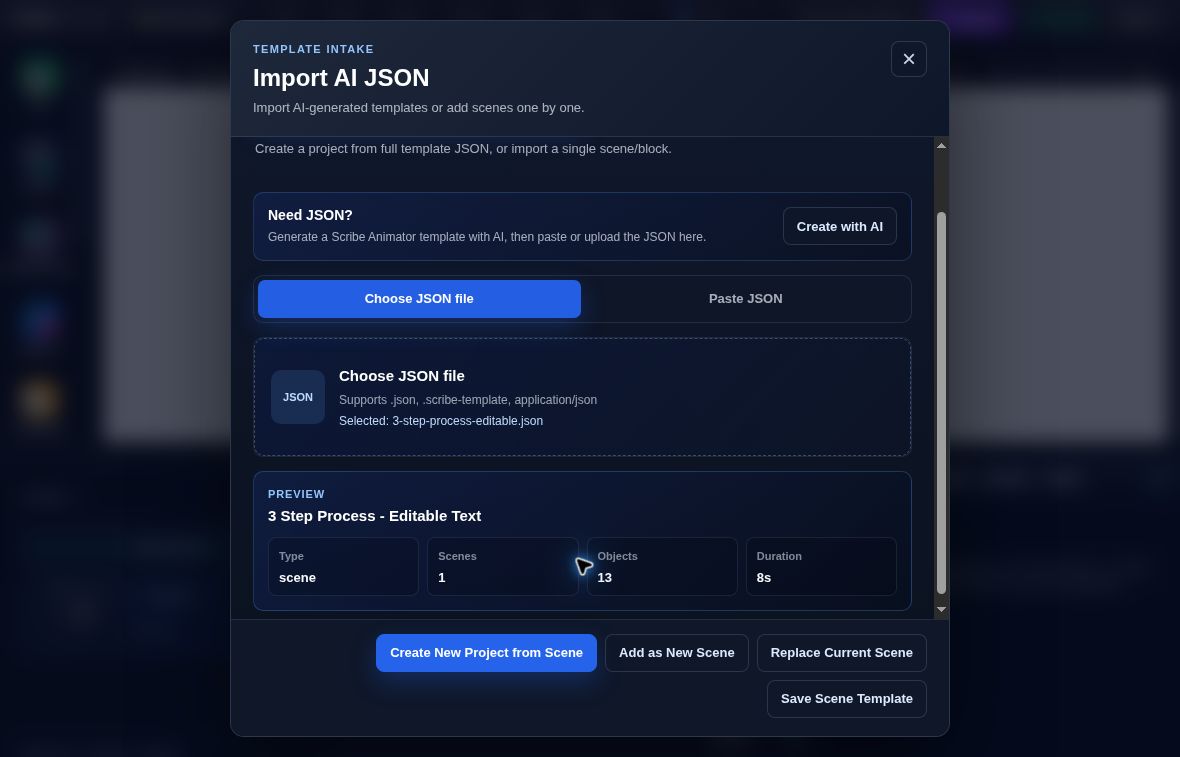
- Validated previewConfirm Type scene, Scenes 1, Objects 13, and Duration 8s.
- Create a new projectUse Create New Project from Scene to keep this exercise separate from existing work.
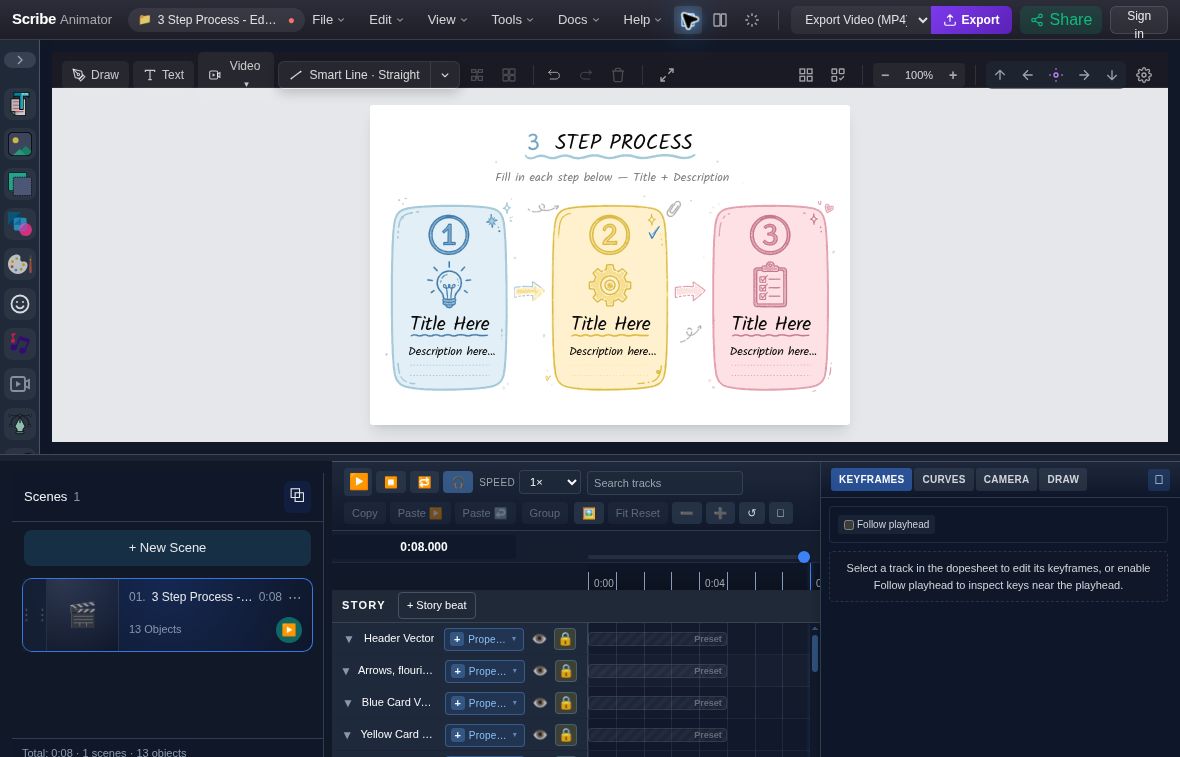
- Finished processThree cards contain native placeholder titles and descriptions that can be edited independently.
- End frameInspect the completed scene at 0:08.000 before changing copy.
Edit a native title
Search for Step 1 Title in Search tracks, select the row, and open Properties → Text. Change Content from Title Here to Plan, then move focus to commit. Only that title changes; the other card titles stay editable.
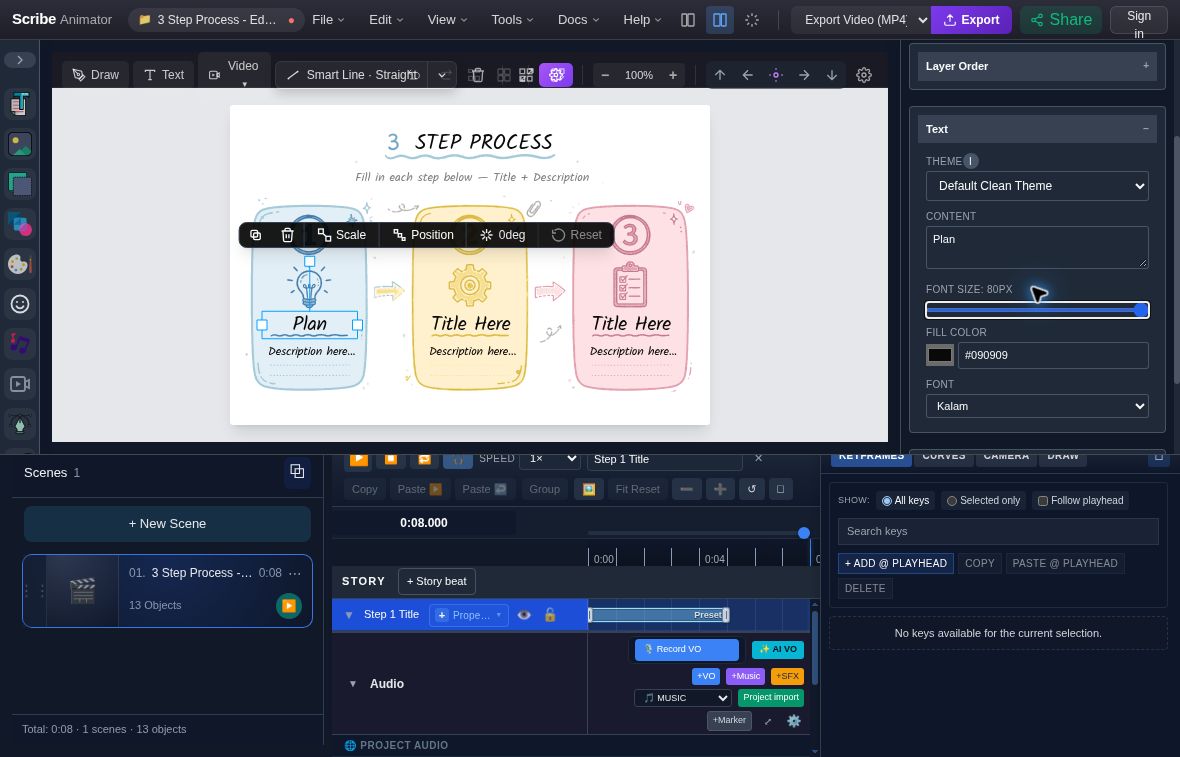
- Edited titleOnly Step 1 Title is selected and its canvas text reads Plan.
- Native Content fieldProperties → Text retains editable text instead of converting it to outlines.
Move the artwork independently
Search for Blue Card Vector, unlock that row, and select it. In Properties → Basics, change X from 43 to 93 and commit. Its native title keeps X 128. This small exercise exposes independent artwork and text; arrange both deliberately when adapting the full card.
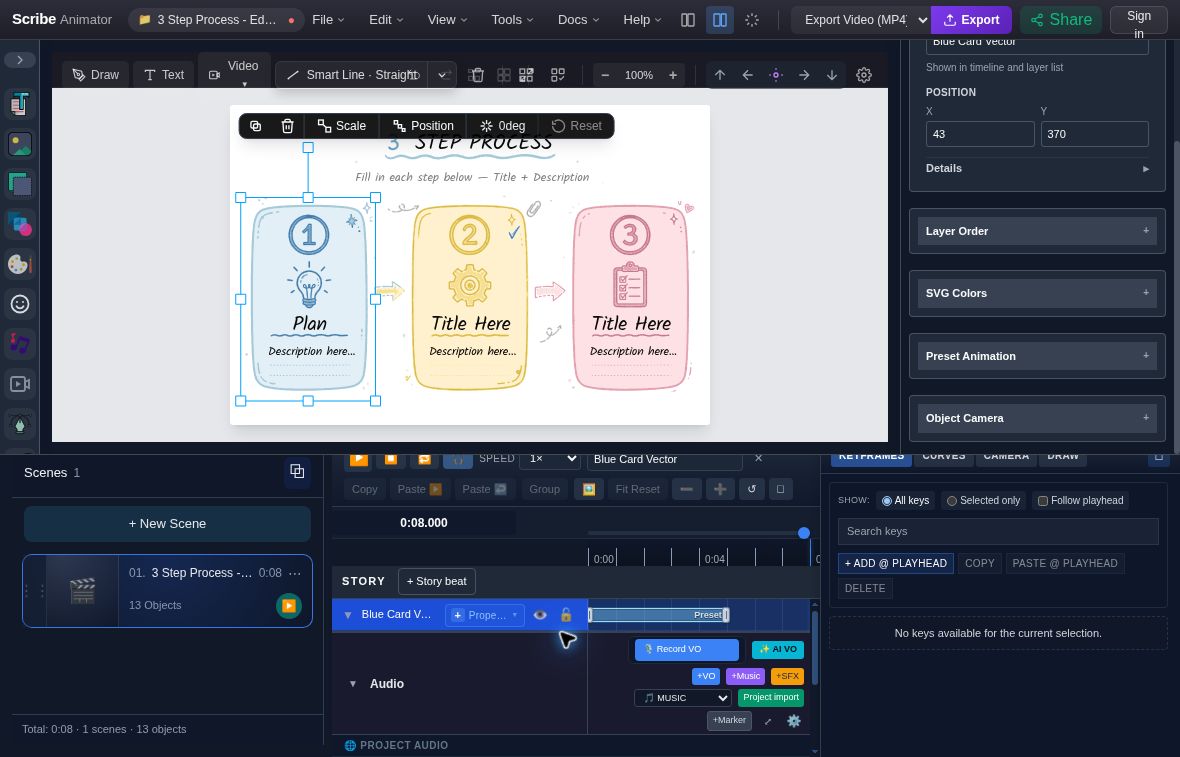
- Original positionThe Basics fields show X 43 and Y 370.
- Artwork lockUse the lock control on the Blue Card Vector row to make the placement editable.
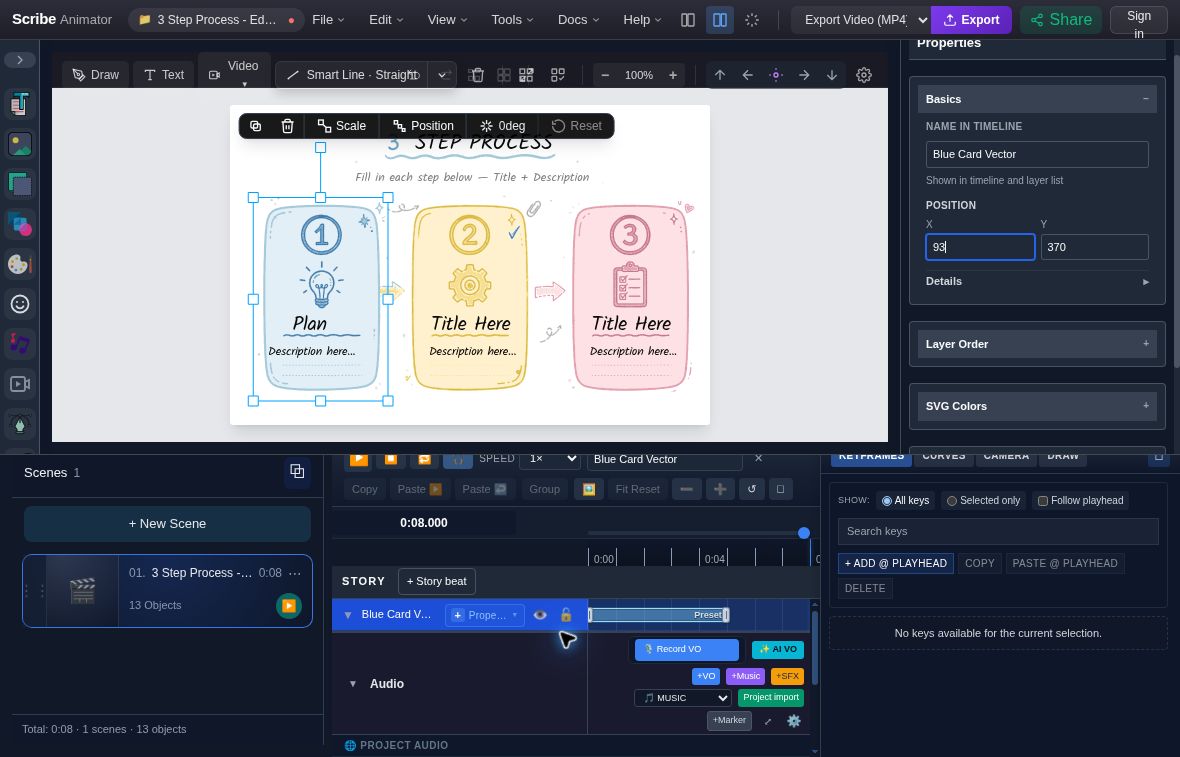
- Revised positionCommit X 93 while retaining Y 370.
- Independent artworkThe selected vector moves right; the separate native title remains where it was authored.
Save, restore, and compare the native export
Choose File → Save Locally, reload, and choose Restore. Confirm Plan
and the moved, unlocked vector. Export a .scribe copy, or import the
actual revised project (.scribe)
to compare with the unchanged JSON. The native revision passes the current
package importer with zero warnings.
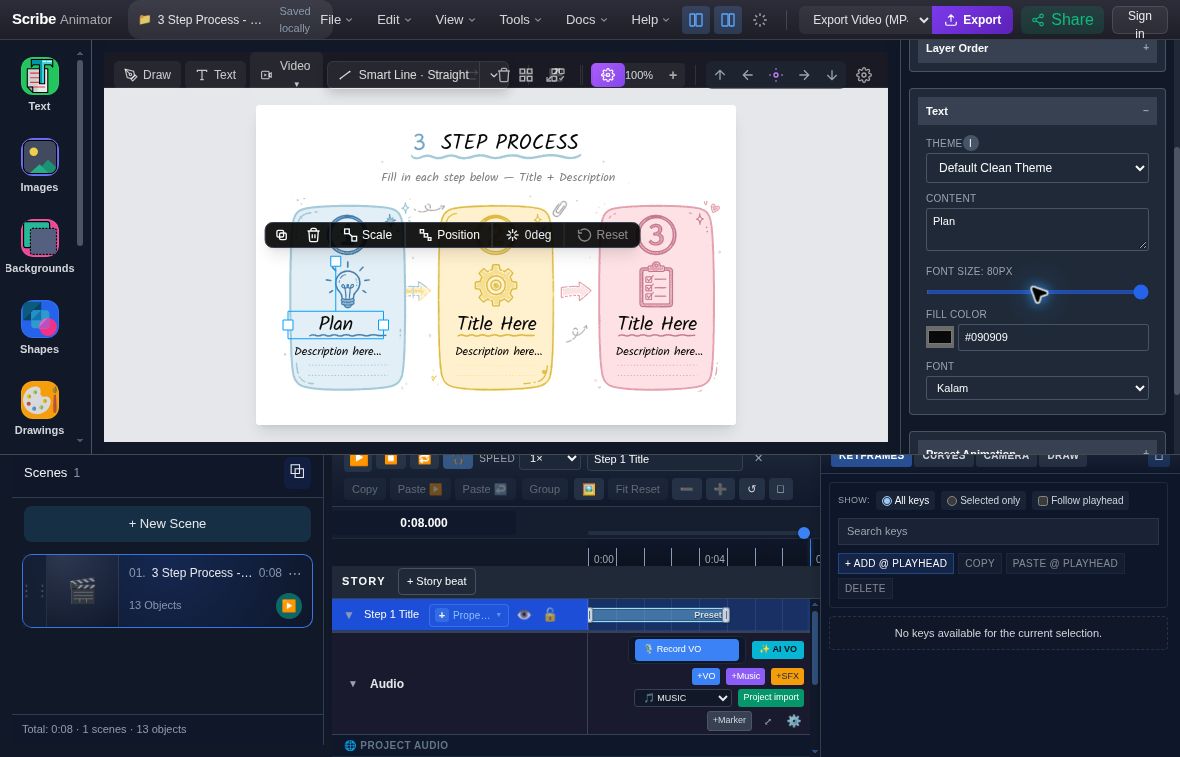
- Restored titleThe first native title retains the saved edit.
- Editable after restoreThe Text Content field remains available with Plan.
The actual Desktop captures were made on 8 October 2026; the deployment's repository commit was not verified. Offline validation and existing-JSON import/edit/save/restore passed. A fresh Director client installation or creation/acceptance request was not run, and this example does not certify one. Download checksums identify both files.
1. Establish the deliverable and story
Specify whether you need one scene, a multi-scene project, or a reusable block. Give the assistant the message, audience, aspect ratio, duration, style, required copy, narration, and supplied assets. A supplied reference calls for the reference reconstruction workflow as well as the production steps here.
Plan a few communication beats before drawing. Each scene should have a clear job, main visual, readable takeaway, and final hold. Separate the entrance of an object, its journey, and an attention cue; they solve different storytelling needs.
2. Discover the open project and checkpoint it
Ask the agent to inspect editor context, project.get, project.get_status, and
scene.list. Retain the actual project/scene IDs and revision. For existing work,
use project.save_local and retain its exact checkpoint key. A local checkpoint
belongs to this browser profile; export a .scribe package when you need a
portable recovery copy.
Use scribe_search_capabilities, then scribe_get_capability, then
scribe_execute_capability with the returned contract. Live schemas win over
older examples. After a reload, reacquire tools and verify project identity.
Resolve a continuity conflict before further mutation; clearing storage or
replaying stale IDs can lose the work you meant to preserve.
3. Build the settled composition
Start with native editable titles, labels, cards, illustrations, and connectors.
Keep parts separate when they need independent editing or motion. Use supplied
artwork first when the brief requires it; otherwise use verified catalog assets
and native primitives where they express the idea clearly. Name placements by
their role, such as text/title, art/device, or flow/request.
Use layout.flow for an ordered process or layout.grid for repeated cards when
the objects are eligible. Both place base geometry once. They do not maintain
live layout constraints. Inspect the actual frame before adding decoration or
complex motion. Vector Import yields drawable geometry; recreate SVG labels as
native text if their wording must remain editable.
4. Add relationships, motion, and timing
| Need | Capability family to discover | What to check |
|---|---|---|
| Attached lines/arrows | connector.* | Targets, route, anchors, and evaluated endpoints at the intended scene/time. |
| Caption that follows a visual | object.anchor_binding.* | Anchor offsets and final placement; the binding owns dependent X/Y. |
| Travel along a route | path_follow.* | Separate route/follower objects and editable pathFollower.t progress keys. |
| Temporary emphasis | indication.* | Before/during/after frames, preserved base appearance, and cleanup at the end. |
| Sequence, parallel, or stagger timing | timeline.compose | Exact returned Draw Step/key IDs, preserved durations, ownership, and scene bounds. |
| Recurring identity across live scenes | object.scene_membership.* and object.scene_pose.* | Shared ID and correct scene-local pose; these live contracts are absent from AI JSON. |
| Camera focus | camera.* | World-center framing, readable margins, travel, holds, and final overview. |
Use the highest supported semantic action that expresses the intended outcome, then the owning lower-level capability for a precise repair. A layout, Path Follow, Anchor Binding, Timeline, or camera ownership rejection is a reason to inspect the conflict. Resolve it through its owner before retrying.
Author timing units before composing them. The current composition contract moves eligible Draw Steps and contiguous property-key ranges without stretching them; an unambiguous Circumscribe/Trace Highlight annotation can move with its sole Draw Step and temporary visible range. Read back times and inspect cleanup. For narration, align to measured speech timing and leave readable holds after a draw completes.
5. Validate AI JSON when that is the authoring route
AI JSON uses TemplateEnvelopeV1, schema version 1, scene-local-v1 timing,
portable props, and IDs whose references stay inside the envelope. It is a
reusable template format. Use .scribe for native project persistence, including
shared identity and managed Scene Pose. Template JSON does not separately carry
a fixed camera pose.
If the 2.0.0 package is installed and file execution is available, use its shipped scripts from the installed skill directory with Node 22.13+ or Node 24:
node scripts/self-test.mjs
node scripts/validate.mjs animation.json
node scripts/validate.mjs --import-compatible legacy-input.json
The scripts need package files and the input JSON, without a repository checkout,
dependency installation, network, or Scribe account. Default CLI validation is
canonical. Exit 0 means the requested mode passes, 1 means validation fails,
and 2 means usage or file access failed. Read runtimeOk, schemaOk, authoringOk,
canonicalOk, all error collections, and warnings.
Import-compatible validation can accept normalized or legacy input while
canonicalOk is false. For new authoring, correct canonical errors instead of
using the more permissive verdict to claim full validity. Live
template.validate_json version 2 accepts json and mode; request
mode: "canonical" explicitly because the live capability's omitted mode defaults
to import-compatible. Retrieve its schema before sending that field.
Editable procedural objects use the current validated asset, recipe digest, seed, parameters, material, and optional playback/Drawing Score contracts. Export an existing valid object or use the package's validated examples; do not invent digests, executable recipe code, compiled paths, or caches. See procedural AI JSON.
Offline validation does not fetch media, render frames, or prove every runtime relationship. The editor revalidates input and checks the destination workspace before apply. Repair material warnings, then inspect the applied project.
6. Review frames, critique, and revise
Discover ui.project_frame_preview and request a meaningful sceneId and
scene-local timeMs with action: "show". The preview uses project pixel
dimensions; choose displayMode: "fit" or "actual". Inspect the overlay through
your client's visual tools. Use Close, Escape, or action: "hide" to dismiss
it. Metadata-only success is not a visual judgment.
Check the settled frame and before/during/after each entrance, travel, drawing, indication, camera move, and hide boundary. Fix one concrete issue through its owning capability, then recheck every affected timestamp. Play the complete animation to judge pacing and legibility. A preview failure or stale revision leaves that frame unverified.
layout.composition_inspect can supply geometric review signals, bounded to
100 active bounded objects and eight unique role references total. These bounds
and occupancy proxies are not painted pixels or an aesthetic score. If it is
unavailable or rejected, record DIAGNOSTIC_NOT_RUN or DIAGNOSTIC_REJECTED and
perform manual exact-frame review. Record the manual judgment separately. Keep
the authored content intact; hiding, deleting, or flattening it to force a
diagnostic pass invalidates the review.
7. Save, reopen, and report observed outcomes
Save the project through its supported path. For editable handoff, export a
.scribe package, verify the downloaded file, reopen it in a fresh editor, and
inspect objects, typography, relationships, procedural data, timing, and playback.
When video delivery is requested, inspect the actual exported file separately.
SVG export is unavailable in the current public editor and WebMCP API; SVG import
and drawing remain supported.
Report each check as PASS, FAIL, or NOT_RUN: offline validation, composition diagnostic, manual frame review, playback, native save/reopen, and video export. Include project/build/package identity, frames checked, remaining differences, dependencies, and warnings. If rendering is unavailable, deliver a validated draft and mark visual/runtime QA NOT_RUN.
For downloads, distinguish the capability result, the actual delivered file, and
the agent's download detector. A detector timeout alone does not prove the file
was absent; a command response alone does not prove a usable file was delivered.
For an active automated video export, discover export.get_status and
export.cancel with its operation ID. Repeated cancellation of terminal work
preserves the recorded status and completion time.
Platform and access differences
| Route | Prerequisite | Acceptance still needed |
|---|---|---|
| Live Desktop WebMCP | Open top-level editor, compatible client, discovered tools, current permissions | Reversible edit, rendered frames, playback, save/reopen, and requested export. |
| Package-assisted AI JSON | Trusted 2.0.0 package loaded by an assistant; supported Node/file execution for validation | Real Desktop import, warnings, visual/runtime review, native persistence. |
| AI JSON without the package | Assistant uses the documented envelope; user opens the real importer | Current editor validation and all result checks. |
| Mobile Lite/native mobile, ordinary browser, CLI, or cloud agent | Inspect the surface's actual manual/tool support | This guide does not establish Desktop WebMCP or fresh package acceptance there. |
Prompt to start an original explainer
Create an editable Scribe Animator explainer about [topic] for [audience]. Use the intended open project, inspect current Site tools, and checkpoint existing work. Plan the communication beats, build readable settled scenes with native text and separate visuals, add supported relationships and purposeful motion, then inspect event frames and camera holds. Revise concrete issues and recheck affected timestamps. Use validated AI JSON if live tools are unavailable. Report validation, visual review, playback, native save/reopen, and any requested export separately, with remaining gaps.
Troubleshooting
| Problem | Recovery |
|---|---|
| Package is absent or the version is uncertain | Use the public Site tools/AI JSON guides; obtain and verify a trusted package before relying on its bundled validator. |
| Site tools are missing | Confirm compatible client, top-level editor, tool settings, policy, and project readiness; use AI JSON if discovery remains unavailable. |
| Canonical validation fails but compatibility passes | Repair the named schema/authoring findings and material warnings, then validate and import again. |
| Preview is blank, fails, or becomes stale | Preserve work, recheck identity and media readiness, and request the frame again; mark the failed check unverified. |
| Composition diagnostic rejects the scene | Record the reason and perform manual exact-frame review without changing content solely to satisfy the limit. |
| Save or download is uncertain | Inspect the returned status and actual file, keep a local checkpoint, and verify reopen before claiming persistence. |
Related guides and verification
- Site tools quickstart and AI agents and WebMCP
- Reference reconstruction
- AI JSON and template authoring
- Save, import, and recover projects
Reviewed on 7 October 2026 against the versioned package contract and current Scribe implementation/tests. The worked example adds canonical offline validation and actual Desktop JSON import, native edits, save/restore, and export captured on 8 October 2026. The broader static reference describes agent instructions and data contracts. These checks do not certify public distribution, fresh installation, a client/model rollout, or fresh Director-client acceptance.