Create and revise procedural drawings
A Procedural Drawing is a native Scribe object whose geometry comes from validated, declarative data. A recipe defines marks, fills, frames, attachments, and optional motion. Scribe evaluates that recipe and renders its ink. The object can then use normal placement, selection, duplication, drawing hands, Timeline timing, camera targeting, and project persistence.
Use this workflow for illustrations that need repeatable numeric variations or internal motion, or for a drawing process that should show construction before detail. Start with a trusted component when its subject fits your scene; author a raw recipe when you need different geometry.
Recipe, component, Drawing Score, palette, and tone authoring capabilities are Desktop-only in the reviewed contracts. Mobile Lite can render an imported Procedural Drawing through the shared renderer and edit supported surrounding scene content; it does not gain those authoring panels. The worked Miso checks below are Desktop evidence. See Which Scribe experience should I use?.
Before you start
- Open a project with an existing scene in the Desktop editor.
- Save a checkpoint or recovery
.scribepackage. - Connect a compatible client using the Site tools quickstart.
- Ask the agent to inspect the active scene, canvas dimensions, and locked objects.
- Choose the intended drawing size, narrative timing, and a small first variation.
All coordinates below are recipe logical units until the drawing is placed and scaled on the canvas. Recipe motion is separate from an object's travel across the scene.
Find and inspect the supported tools
Ask the agent to use scribe_search_capabilities, inspect each action with scribe_get_capability, and execute it with scribe_execute_capability. The broker accepts a capabilityId and an input object. Use the schema returned for the open editor rather than inferring fields from a screenshot.
| Capability ID | Purpose | Important input |
|---|---|---|
procedural.validate | Validate and sample a candidate without editing the project | Required recipe, seed; optional parameters, ink, score, palette, tone, and sample times |
procedural.create | Create one scene-local drawing | Required recipe, seed, x, y; optional target scene, size, name, and playback |
procedural.get | Inspect an existing drawing | Required objectId; opt in to recipe, score, palette, tone, or generated-detail IDs |
procedural.update | Atomically revise authored data | Required objectId; send the fields to change and relevant expected revisions |
procedural.component.search | Search the trusted catalog | Optional query and maxResults |
procedural.component.inspect | Read a component's immutable pin and numeric contract | Required componentId; optional version |
procedural.component.create | Compile and place a pinned component | Required component ID, version, revision pin, seed, X, and Y |
procedural.component.get | Inspect a drawing's retained component source | Required objectId |
procedural.component.update | Revise a component's numeric parameters or seed | Required objectId and expectedComponentSourceRevision |
A client that exposes individual capability tools uses names such as scribe_procedural_create or scribe_procedural_component_search. The stable broker workflow also reaches these capabilities without advertising every one as a separate Site tool. Mutations respect object locks, current project state, validation, and normal Undo.
Worked example: inspect and move Miso
Use the original Miso project (.scribe) to explore a complete procedural illustration without first connecting an agent. It contains one 12-second Meet Miso scene at 1920 × 1080, with one Procedural Drawing, three native Text objects, and three packaged hand/pen PNGs. Miso is a supplied raw recipe, separate from the trusted component catalog below.
The paired recipe JSON is the
same recipe embedded in the project. It has 32 marks and matches the embedded
recipe revision. It is recipe data, not an Import AI JSON template envelope;
open the .scribe file to load this complete scene.
Compare a partial draw with the finished cat
- Save your current work. Choose File → Import .scribe and open the source.
- Select Meet Miso and seek to 3.500 seconds. The hand and pen are drawing a partial cat.
- Seek to 8.500 seconds. The cat is complete. Its authored Draw Step runs from 0.650 to 7.300 seconds.
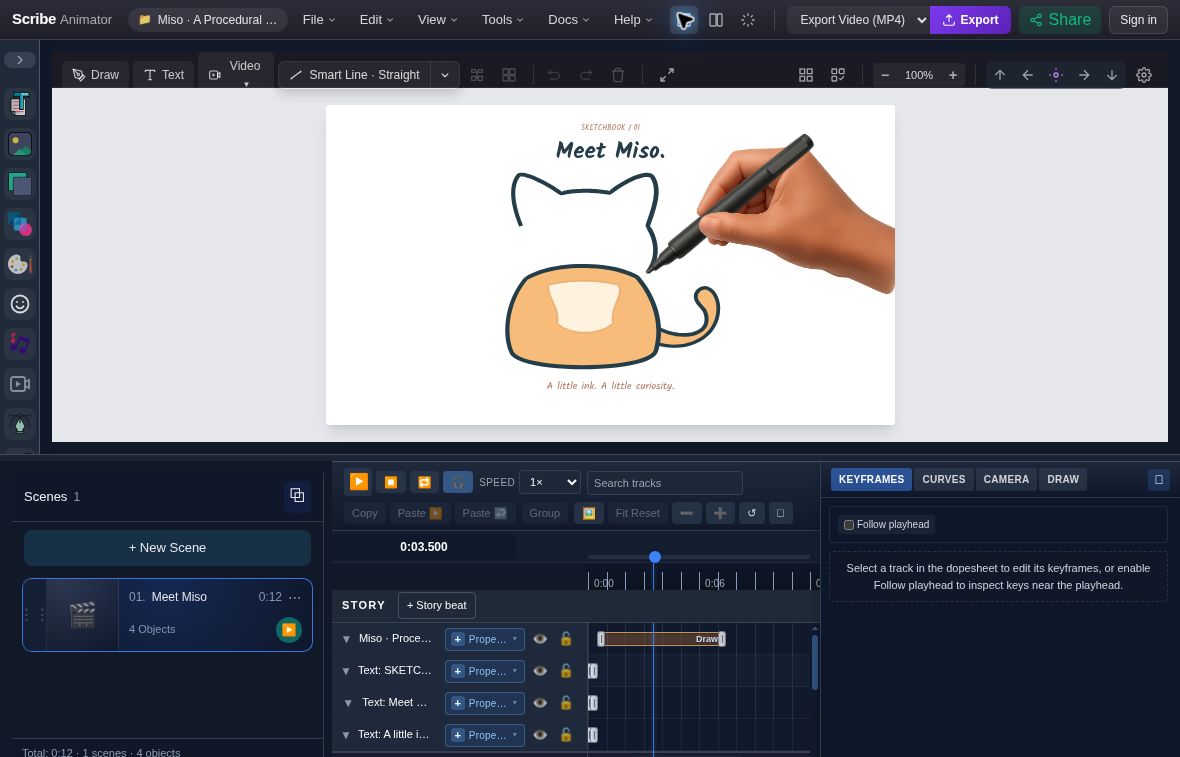
- Hand and partial drawingThe packaged hand and pen follow the active drawing while later cat details remain absent.
- Partial-draw timestampThe playhead reads 0:03.500 in the 12-second Meet Miso scene.
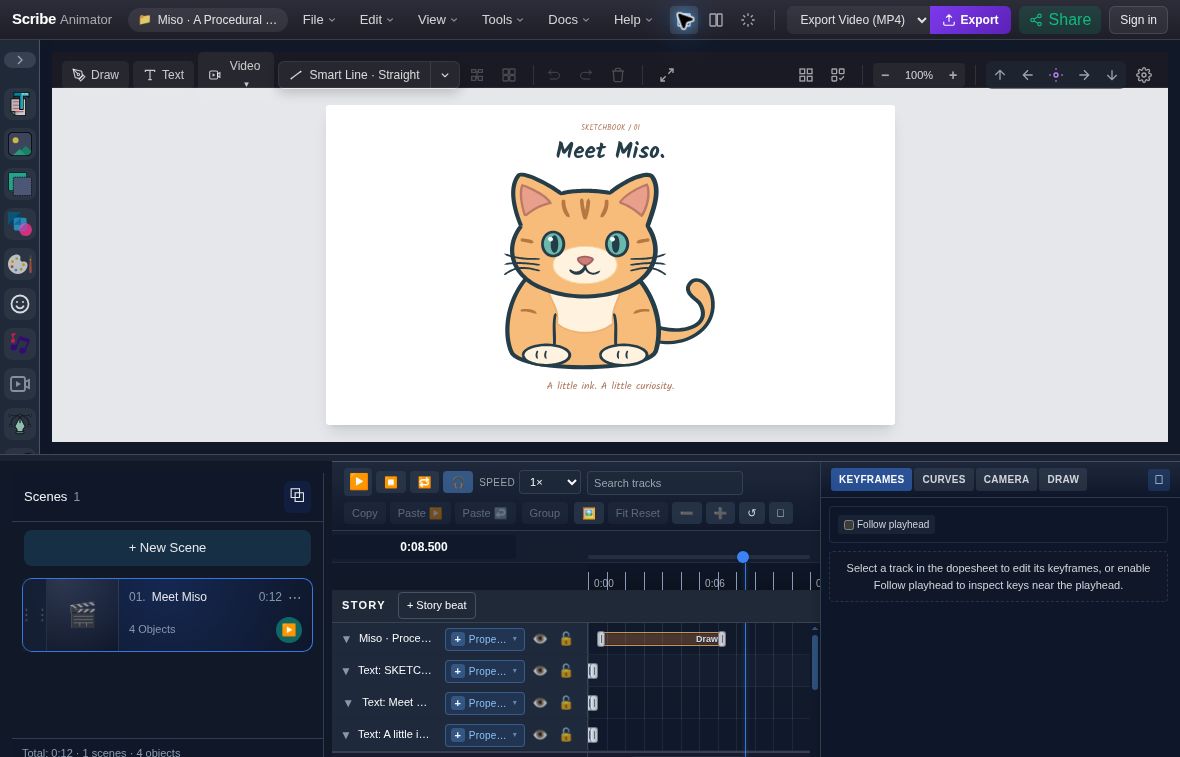
- Completed recipeThe cat retains the same single procedural object identity after reveal.
- Completed-draw timestampThe playhead reads 0:08.500.
Make a visible, independent position edit
- Select Miso · Procedural Cat in the timeline and open Properties → Basics.
- Seek to 11.000 seconds and note X 600, Y 235.
- Change X to 720 and press Enter. The cat shifts right while its title remains independent. Use Undo to compare, then Redo to retain the edit.
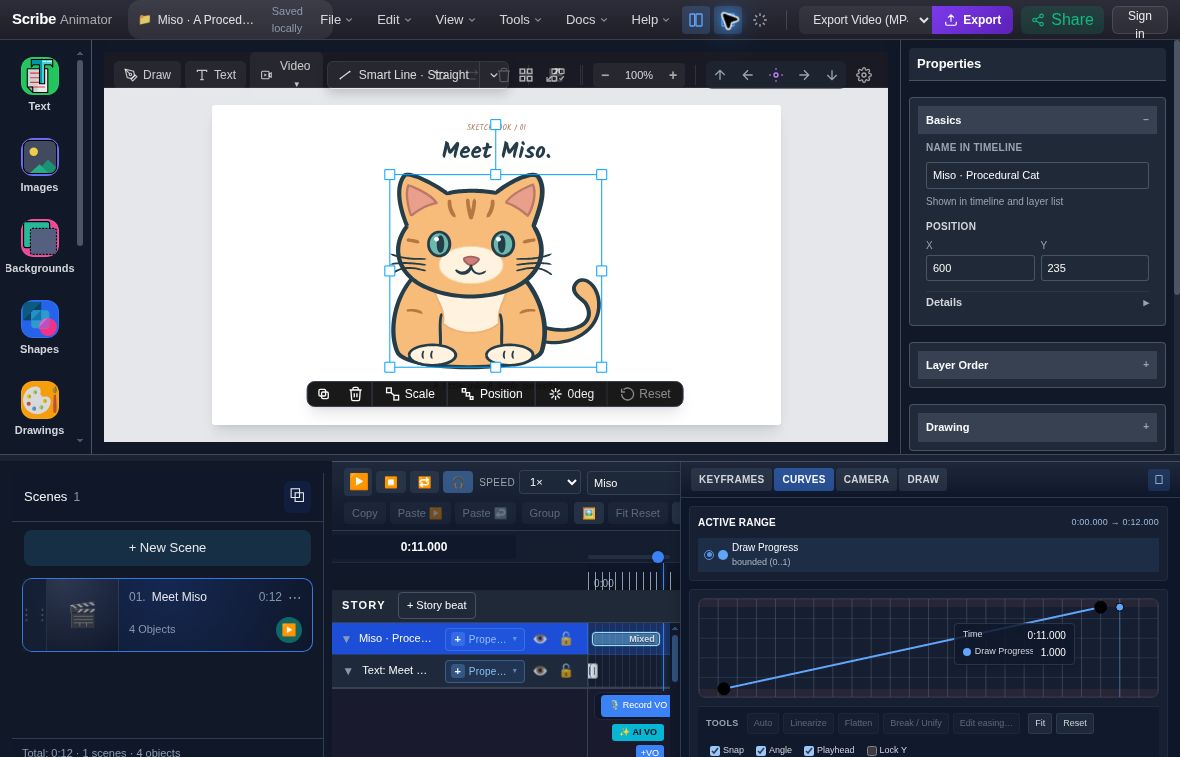
- Original XThe Basics panel shows X 600 and Y 235.
- Independent drawingOnly the cat is selected; its title is a separate native Text object.
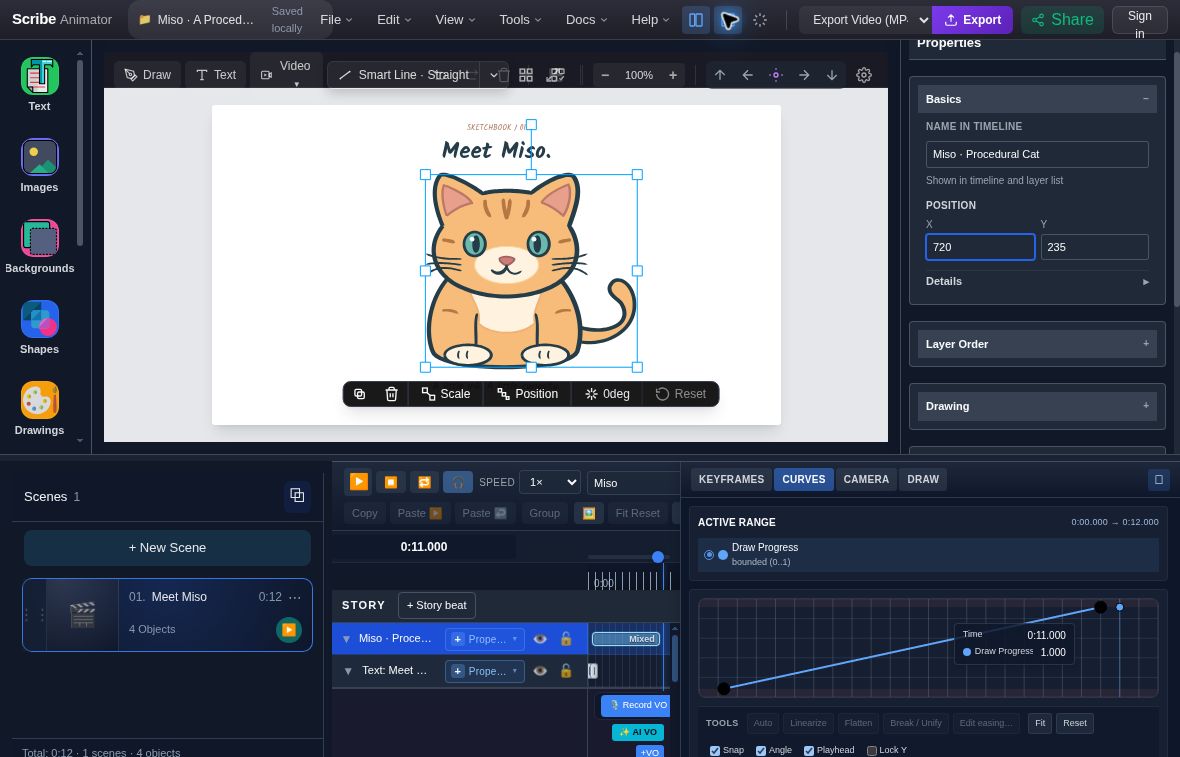
- Revised XEnter 720 and commit the edit; Y stays at 235.
- Visible resultThe procedural cat moves right while the title stays independent.
For the verified portable result, open Miso with the position revision and music (.scribe). This file contains X 720, the original drawing ink, the hand/pen assets, and the actual generated music. See the music walkthrough for its separate WAV and generation metadata.
Understand the ink and progress controls in this example
In Properties → Drawing, Base Ink starts at #243d49. Changing it to #365c84, then using Undo and Redo, changes the stored value. It does not visibly recolor Miso: all 32 marks carry their own authored color overrides. The panel explains that base ink applies to marks without those overrides. Use the raw-card and palette examples below when learning to restyle eligible marks.
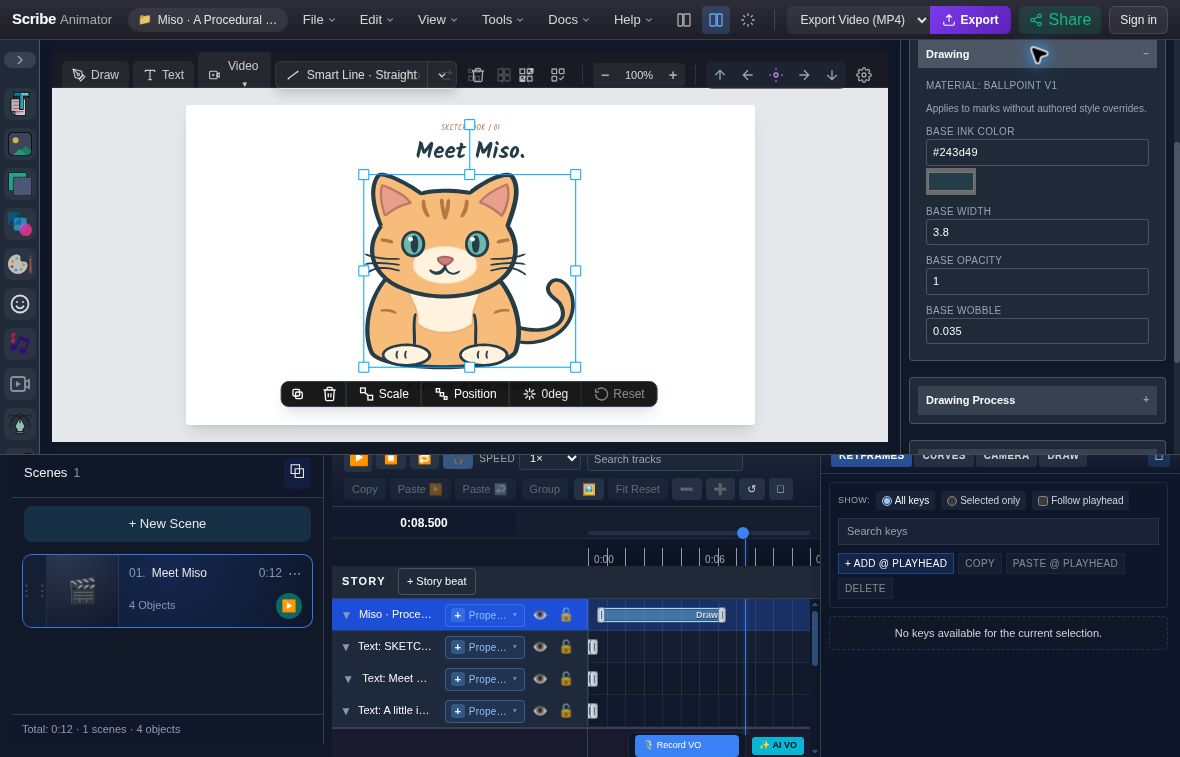
- Override explanationBase ink applies to marks without authored style overrides.
- Stored base colorThe original Base Ink Color is #243d49; the inspection revision changes it to #365c84.
You can add Draw Progress from the cat's Add property menu, search for it, and pop out KEYFRAMES. Its defaults align with the existing draw interval: 0.650 seconds/value 0 and 7.300 seconds/value 1.
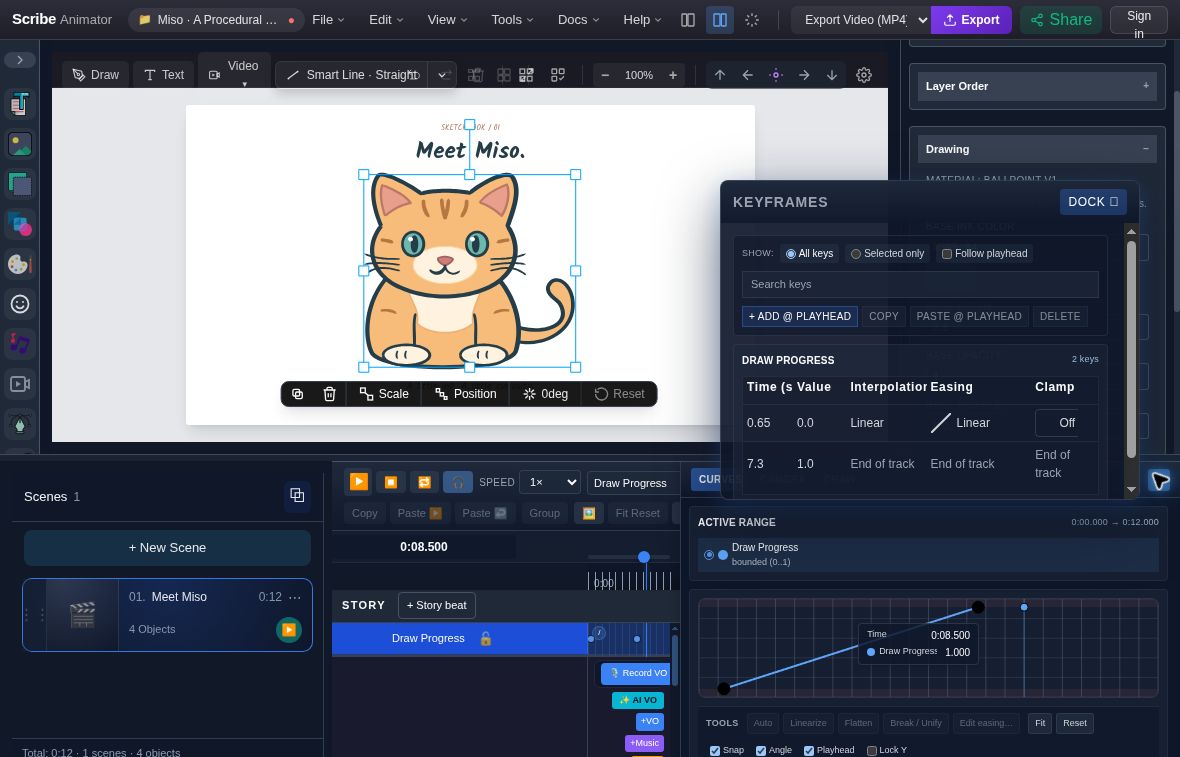
- Default progress endpointsThe floating table exposes both generated endpoints, aligned with the existing Draw Step.
- Added progress trackThis selected property lane is separate from the existing authored Draw Step.
In this captured session, editing a separately added progress endpoint changed the numeric curve without visibly retiming Miso's existing drawing. Inspect and revise the owning Draw Step before treating a second progress lane as a timing solution. The ink-and-progress inspection copy (.scribe) preserves the changed base value and added track. It is a separate branch of the example, not the position-and-music result.
File → Save Locally, reload, and Restore were checked for the ink value and added track. The complete position-and-music package was imported again with its hand assets. Both copies pass the current package importer with zero warnings. The captures were made in the actual deployed Desktop editor on 8 October 2026; its repository commit was not verified. Fresh agent authoring, a visible progress retime, and video export are outside this example's verified scope. Download checksums identify the files.
Open a finished editable component example
Download the procedural API explainer (.scribe, 22.4 KiB) to inspect a complete project before authoring a variation. It contains three six-second scenes at 1280 × 720: Request, Processing, and Response. Eight procedural component drawings, fourteen native Text objects, and five Smart Arrows remain separate and editable. The recipe data is included in the package.
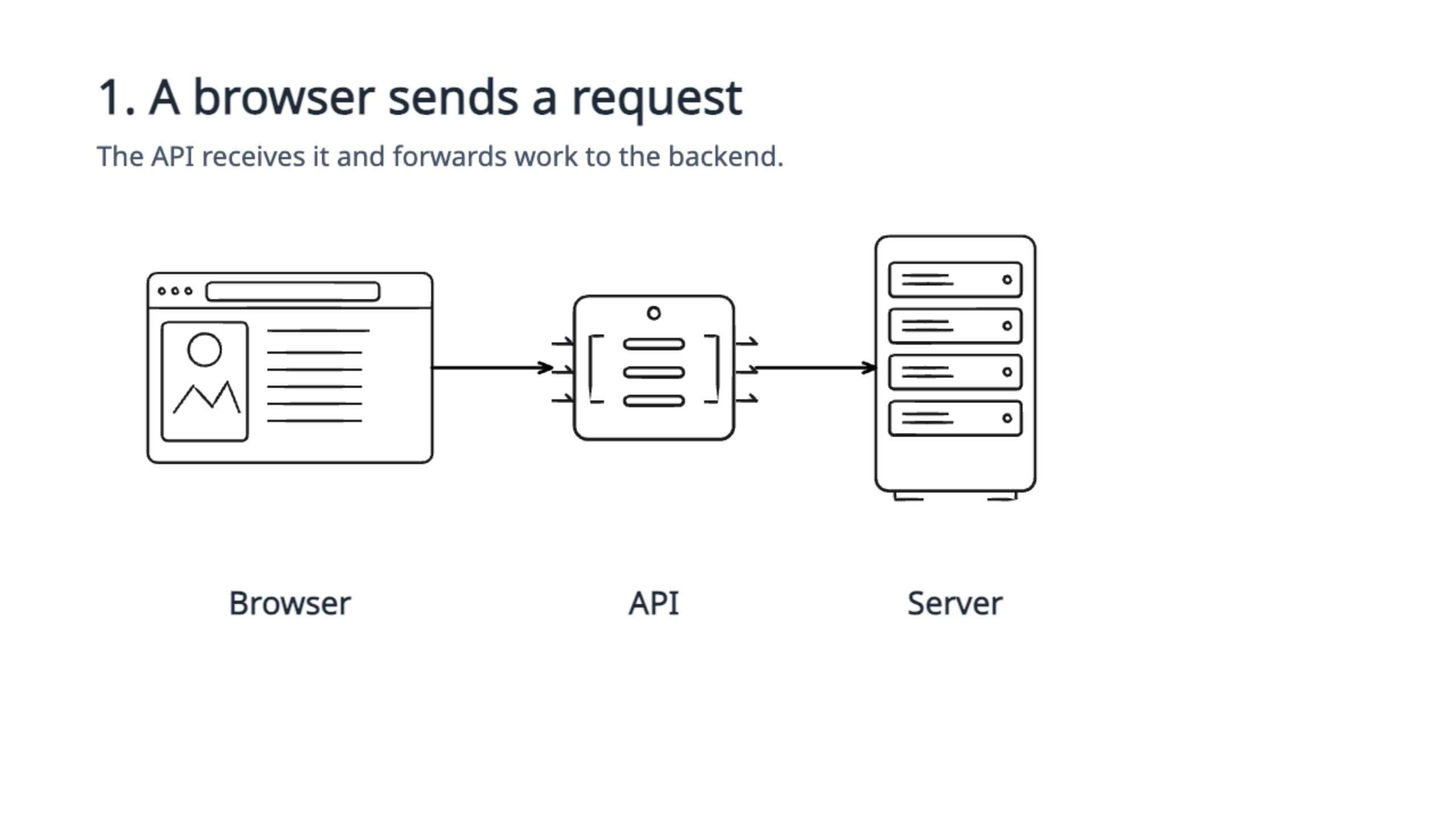
- Browser componentThe browser is a separate Procedural Drawing with retained component parameters.
- API componentThis illustration has its own recipe, placement, and Draw Step; the caption remains native text.
- Server componentThe server and attached arrow remain independent editable objects in the package.
- Save your current project, then choose File → Import .scribe and open the downloaded package.
- Select 01 — Request and seek to 5.5 seconds. Select the Browser, API, and Server drawings separately; select a label to inspect its native text.
- Play from the beginning. The Browser, API, and Server Draw Steps start at 0.2, 1.45, and 2.7 seconds and each lasts 1.2 seconds. Review both a partial draw and the completed scene.
- With a compatible agent, discover
procedural.component.getand inspect the selected Browser's retained source. It usestechnology/browser, version 1, withcontent-densityset to 1 in this supplied project. - Use the returned component contract and current source revision to try
content-density: 1.2throughprocedural.component.update. Inspect the new line lengths and spacing, then Undo and Redo. Keep the scene timing and label placement intact. - Save your variation as a new
.scribepackage and reopen it before sharing.
The unchanged sample passed the current package importer with zero warnings and no missing runtime assets on 8 October 2026. The pictured frame and the original save/reopen observations are recorded component acceptance evidence; they do not certify a new live agent session. A SHA-256 checksum is available for this exact download.
Tutorial 1: create a trusted component
1. Search by subject
For example, pass this request to scribe_execute_capability:
{
  "capabilityId": "procedural.component.search",
  "input": { "query": "fish", "maxResults": 3 }
}
Search returns compact cards with an ID, version, revision, purpose, parameter IDs, and stable output names. It does not return implementation geometry. Search is case-insensitive, supports bounded token prefixes and catalog aliases, and returns an empty list when no component matches.
The current trusted catalog contains:
| Subject | Component ID |
|---|---|
| Fish, seaweed, bubbles | animal/fish, plant/seaweed, effect/bubbles |
| Browser, server, database, API, AI agent | technology/browser, technology/server, technology/database, technology/api, technology/ai-agent |
| Laptop, phone | device/laptop, device/phone |
| Document, lightbulb | object/document, object/lightbulb |
Search returns five items by default and at most ten per request. Inspect a specific ID when you already know it.
2. Inspect the exact version
{
  "capabilityId": "procedural.component.inspect",
  "input": { "componentId": "animal/fish", "version": 1 }
}
Read each parameter's meaning, unit, minimum, maximum, and default. Retain the returned revision beginning with sha256:. Supply that exact pin as expectedComponentRevision when creating; do not invent or calculate a substitute pin.
3. Create with numeric intent
Ask the agent:
Create the inspected fish component in the active scene at X 300, Y 220, width 420, with seed 42. Use its default parameters first and name it “Fish”.
The creation input uses componentId, version, expectedComponentRevision, seed, x, and y. Optional parameters is an array of { "id": "parameter-name", "value": number } entries. Also supported are width, rotation, objectId, sceneId, name, baseInk, playback, and expectedRevision. Height follows the component's reference proportions; the component creation action has no height field.
The result is an ordinary Procedural Drawing with both compiled recipe data and a compact, retained component source. Inspect it on the canvas before adding timing.
4. Revise the semantic parameters
- Call
procedural.component.getwith the createdobjectId. - Confirm
componentAuthored,resolvable, andinSync. - Copy the current
componentSourceRevisiontoexpectedComponentSourceRevision. - Call
procedural.component.updatewith the parameter changes or a new numeric seed. - Check the result, Undo once, then Redo and compare the drawing.
Component parameter updates merge the supplied changes into the previous effective parameters. They preserve independent ink, palette, score, tone, playback, hand, and host timing when those remain valid. Changes to intrinsic geometry can change the host width/height while preserving its existing display scale.
Use procedural.component.update for a component drawing's recipe-owned parameters and seed. A raw procedural.update cannot replace its recipe, seed, or parameter set. If the exact catalog pin becomes unavailable, the compiled drawing remains renderable, but semantic updates require that pin. A source/asset mismatch is reported instead of overwriting the current drawing.
Current component boundary
These tools accept the fixed trusted catalog, not uploaded component implementations, registry URLs, scripts, or arbitrary component programs. Reusable components are declarative and bounded; their geometry is compiled into the same recipe contract used by raw drawings. The public workflow does not expose the component authoring toolkit or a component-install UI.
Tutorial 2: validate and create a raw recipe
1. Start with a small complete candidate
This candidate describes a card outline, a construction guide, and an accent. card-width changes the horizontal geometry. The complete request below is for scribe_execute_capability:
{
  "capabilityId": "procedural.validate",
  "input": {
    "seed": 42,
    "sampleTimes": [0, 0.25, 0.5],
    "baseInk": { "color": "#1f2937", "width": 2 },
    "recipe": {
      "schema": "scribe.procedural/1",
      "parameters": [
        { "id": "card-width", "type": "number", "unit": "logical-unit", "min": 80, "max": 240, "default": 160 }
      ],
      "frames": [],
      "attachments": [],
      "motionChannels": [],
      "marks": [
        {
          "id": "card-guide",
          "geometry": {
            "op": "polyline",
            "points": [
              { "space": "world", "x": -10, "y": 40 },
              { "space": "world", "x": { "op": "add", "left": { "op": "parameter", "id": "card-width" }, "right": 10 }, "y": 40 }
            ],
            "closed": false
          },
          "direction": "forward",
          "drawOrder": 0,
          "paintOrder": 0,
          "styleRole": "construction"
        },
        {
          "id": "card-outline",
          "geometry": {
            "op": "polyline",
            "points": [
              { "space": "world", "x": 0, "y": 0 },
              { "space": "world", "x": { "op": "parameter", "id": "card-width" }, "y": 0 },
              { "space": "world", "x": { "op": "parameter", "id": "card-width" }, "y": 80 },
              { "space": "world", "x": 0, "y": 80 }
            ],
            "closed": true
          },
          "direction": "forward",
          "drawOrder": 1,
          "paintOrder": 1,
          "styleRole": "outlinePrimary"
        },
        {
          "id": "card-accent",
          "geometry": {
            "op": "polyline",
            "points": [
              { "space": "world", "x": 20, "y": 60 },
              { "space": "world", "x": { "op": "subtract", "left": { "op": "parameter", "id": "card-width" }, "right": 20 }, "y": 60 }
            ],
            "closed": false
          },
          "direction": "forward",
          "drawOrder": 2,
          "paintOrder": 2,
          "styleRole": "accentPrimary"
        }
      ],
      "fills": []
    }
  }
}
Expect valid: true, content identities, reference bounds, counts, sampled times, and bounded runtime/material costs. Validation does not create an object. Read any reported diagnostics path before retrying; a structurally valid recipe can still exceed geometry or rendering budgets at a sampled pose.
2. Create from that candidate
Reuse the same recipe, seed, and baseInk with procedural.create. Remove sampleTimes; add x: 300, y: 220, width: 450, name: "Procedural card", and objectId: "procedural-card". This walkthrough uses that explicit ID in later calls. If it already exists, choose an unused ID and use it throughout instead. Optionally set a known sceneId.
If omitted, sceneId uses the active scene. In other workflows, omitting objectId generates an ID; retain the returned objectId for subsequent calls. Width/height default to the time-zero semantic reference bounds. Supplying only width preserves their aspect ratio; supplying both dimensions deliberately sets both axes. The reference box stays stable while procedural geometry deforms, and it does not clip geometry that moves outside it.
Download the complete
basic card request, or a
card request with Drawing Score and palette.
Each file contains a procedural.create broker request with the full recipe;
give it to your compatible agent for scribe_execute_capability. Choose one
request for an unused objectId in the active scene. These are capability
requests; Import AI JSON accepts a template envelope instead.
Both requests passed the current input schema and production procedural preparation and sampling checks. The editor still checks the open scene, locks, and workspace budgets before creating the drawing. The score/palette request includes the values explained in Tutorials 3 and 4.
3. Inspect and revise
{
  "capabilityId": "procedural.get",
  "input": {
    "objectId": "procedural-card",
    "includeRecipe": true,
    "includeDrawingScore": true,
    "includePalette": true,
    "includeToneRegions": true
  }
}
Use the returned recipeRevision as expectedRecipeRevision when changing a raw drawing. Send a new parameters array to replace its override set; omitted recipe parameters use their defaults. This differs from component parameter patches, which merge.
For example, set parameters to [{ "id": "card-width", "value": 200 }]. Check the new geometry, then use ordinary object transforms if you want a different canvas size. Raw parameter updates retain the existing host width/height. Replacing a recipe also retains the previous overrides unless you explicitly replace them; remove overrides that the replacement no longer defines.
procedural.update changes recipe, seed, parameters, base ink, playback, score, palette, or tone. Use the normal object placement tools for X/Y, rotation, or host dimensions. A mutation is prepared and validated before publication; invalid, locked, stale, or over-budget input leaves the existing drawing intact.
The recipe grammar
All six recipe arrays are required, even when empty. At least one nondegenerate drawable mark or fill must result.
| Data | Supported V1 form |
|---|---|
| Numeric parameters | id, type: "number", unit, min, max, default; units are ratio, logical-unit, radian, or count |
| Scalars | Finite number; parameter, motion, random, instance-index, add, subtract, multiply, divide, sin, or cos expression |
| Curves | polyline with points and closed; cubic-bezier with start, segments, sampling, and closed; body-outline with a body frame and sampling |
| Coordinate spaces | World X/Y; local X/Y tied to an affine frame; body T/S with tangent/normal offsets tied to a body frame |
| Frames | Affine frame attached at a named point; body frame with open spine, half-width profile, and optional traveling wave |
| Attachments | Named point with parent orientation for world/local or tangent for body coordinates |
| Motion channels | Bounded sine, phase, or pulse signals with 1–16 cycles per loop |
| Marks | Geometry, forward/reverse direction, draw/paint order; optional role, ink override, or one bounded repeat |
| Fills | Closed boundary, paint order, lowercase hex color, opacity, fill rule, and after-drawing or after-mark reveal |
Recipe rotations and scalar trigonometry use radians. Host object rotation uses degrees. Body t is normalized deformed-spine arc length from 0 to 1; s is signed half-width units from −2 to 2, with the contour at −1 or 1. A curve must use one space and one frame throughout. Frame/attachment cycles are rejected.
Definitions use globally unique lowercase semantic paths such as fish/body. Each segment starts with a letter, contains letters/numbers/hyphens, and has at most 32 characters; the full path has at most 96. Reserved constructor and prototype segments are forbidden. Repeated mark stripe produces stripe:0 through stripe:N-1, including stripe:0 when repeat count is one. instance-index is only valid inside a repeated mark.
Random expressions use a named purpose, numeric range, and unsigned 32-bit seed. Keep meaningful IDs stable when revising; named random streams depend on those identities. Validation checks expression intervals, so a divisor whose allowed range includes zero is rejected even if one selected value would be safe.
Ink and editor controls
V1 renders Ballpoint V1 ink. Marks retain their semantic centerlines; the hand follows that original route while Scribe paints a pressure/taper/wobble outline around it.
Select the drawing and open its Properties sections:
| Visible control | Meaning and range |
|---|---|
| Base Ink Color | Lowercase #rrggbb ink color |
| Base Width | Nominal logical width, 0.1–64 |
| Base Opacity | Ink opacity, 0–1 |
| Base Wobble | Seeded displacement as a fraction of width, 0–1 |
| Procedural Motion → Enabled | Evaluate recipe motion instead of the time-zero pose |
| Period (ms) | One local motion cycle, 100–3,600,000 ms |
| Phase Offset (cycles) | Offset the local motion phase, −1,000,000 to 1,000,000 |
| Drawing Process | Inspect Length or Drawing Score mode, score steps/lifecycle, and tone diagnostics |
Base ink applies where authored styles and palette overrides allow it. Enter or leave an ink field to commit its valid value; invalid input shows an error. These edits use normal Undo/Redo. Pressure profiles and taper are available as recipe mark-style data, not as base-ink fields in these tools. Profiles contain 2–16 ordered points spanning T 0 to 1; pressure and taper fractions are 0–1, and start/end taper fractions must sum to at most one.
Tutorial 3: author a Drawing Score
A Drawing Score describes the process within one object: which part and layer each semantic mark belongs to, the ordered steps, and whether a layer stays, ghosts, or hides. It does not replace recipe geometry or the object's outer Draw Step schedule.
For the three-mark card above, pass this value as drawingScore in procedural.validate, create, or update:
{
  "schema": "scribe.procedural-drawing-score/1",
  "parts": [{ "id": "card-part", "label": "Card" }],
  "layers": [
    { "id": "guide-layer", "lifecycle": { "finalBehavior": "ghost", "retireAfterStepId": "outline-step", "finalOpacity": 0.08, "fadeFraction": 0.05 } },
    { "id": "ink-layer", "lifecycle": { "finalBehavior": "keep" } }
  ],
  "steps": [
    { "id": "placement-step", "phase": "placement", "markIds": ["card-guide"] },
    { "id": "outline-step", "phase": "contours", "markIds": ["card-outline"] },
    { "id": "accent-step", "phase": "accents", "markIds": ["card-accent"] }
  ],
  "marks": [
    { "markId": "card-guide", "partId": "card-part", "layerId": "guide-layer", "kind": "guide" },
    { "markId": "card-outline", "partId": "card-part", "layerId": "ink-layer", "kind": "contour", "after": ["card-guide"] },
    { "markId": "card-accent", "partId": "card-part", "layerId": "ink-layer", "kind": "accent", "after": ["card-outline"] }
  ]
}
- Inspect the actual expanded mark IDs first.
- Assign every mark exactly once in
marksand exactly once in the orderedsteps. - Use phases
placement,construction,contours,details, oraccents. - Use mark kinds
guide,contour,detail, oraccent; optionaltimingCostis 0.1–10. - Put all prerequisite marks/parts before their dependents. A
dependsOnpart must finish before the dependent part starts;afternames distinct earlier marks. - Retire a layer only after its last mark finishes. A fade fraction is 0–0.25 of total draw progress and must finish by progress one.
- Enable Draw In, author the outer drawing timing, and scrub through the guide, outline, and accent.
The scheduler allocates normalized progress using time-zero mark lengths, mark kind, pen-lift cost, and optional timing cost. Its allocation stays fixed while geometry moves. Step array order determines sequence. keep leaves marks visible, ghost reduces their opacity to a value below one, and hide reduces it to zero. Retirement changes mark opacity; it does not erase geometry or animate an eraser hand.
Use expectedDrawingScoreRevision on updates. To return to ordinary length-based drawing, send clearDrawingScore: true; do not send a new score in the same request. The Drawing Process section is an inspector, not a score editor.
Tutorial 4: recolor with a semantic palette
A palette belongs to the placed object. Its roles can restyle one copy while another copy keeps its own palette. The recipe assigns roles; a palette cannot infer semantic meaning from unlabelled marks.
Pass this value as palette:
{
  "schema": "scribe.procedural-palette/1",
  "roles": {
    "outlinePrimary": { "markStyle": { "color": "#1f2937", "width": 2 } },
    "construction": { "markStyle": { "color": "#94a3b8", "opacity": 0.35 } },
    "accentPrimary": { "markStyle": { "color": "#2563eb", "width": 3 } },
    "shadow": { "markStyle": { "color": "#475569", "opacity": 0.45 } }
  }
}
- Call
procedural.getand readreferencedRoles. - Set only the roles your recipe uses.
- Validate the candidate palette, then update with the current
expectedPaletteRevisionwhen present. - Compare copies with different palettes at the same draw progress and motion phase.
- Send
clearPalette: trueto expose the latest underlying styles again.
Supported roles are outlinePrimary, bodyBase, accentPrimary, accentSecondary, detail, construction, highlight, and shadow. Each role can contain markStyle with color/width/opacity/wobble and fill with color/opacity. Optional palette baseInk uses the same four ink fields.
Mark style precedence is asset base ink, palette base ink, authored mark override, then role mark style. A fill starts with its source color/opacity, then applies role fill fields. For shadow, a missing mark-style or fill component falls back to detail, then source styling. Palettes cannot change pressure/taper, geometry, motion, surface, or drawing order. A palette-only edit preserves the recipe, semantic guides, and Drawing Score.
Tutorial 5: add bounded tone hatching
Tone regions add generated hatch marks to a recipe's subject. They are authored intent inside the asset, while the generated detail geometry is reconstructed by Scribe. Use this for shadows or texture that should stay registered to a world, local, or body frame.
For a small shadow patch inside the example card, pass this as toneRegions:
{
  "schema": "scribe.procedural-tone-regions/1",
  "regions": [
    {
      "id": "card-shadow",
      "space": { "kind": "world" },
      "region": { "op": "polygon", "points": [{ "x": 20, "y": 10 }, { "x": 70, "y": 10 }, { "x": 70, "y": 30 }, { "x": 20, "y": 30 }] },
      "hatch": { "angle": 30, "spacing": 8, "maxSegmentLength": 80, "jitter": 0.1 },
      "drawOrder": 10,
      "paintOrder": 10
    }
  ]
}
- Validate with
includeGeneratedDetailIds: truebefore assigning a Drawing Score. - Read the returned generated IDs, region counts, and total expanded mark count.
- If using a score, include every generated hatch mark in its coverage as well as the authored marks.
- Validate tone and score together, then create or update the object.
- Inspect multiple motion phases and partial draw progress. Apply the
shadowpalette role for hatch ink.
If the card already has the three-mark score, adding hatching requires a revised score in the same update, or an intentional clearDrawingScore: true. Changing hatch geometry can change its generated IDs. Existing scores are revalidated; Scribe does not silently drop invalid coverage.
Regions use an even-odd polygon or bounded union, subtract, and intersect expressions. Each expression shares its region's coordinate owner. A local region names an affine frame; a body region names a body frame and provides unitsPerT/unitsPerS chart scales. Hatch angle is −180–180 degrees, spacing 2–100, maximum segment length 4–1,000, and optional seeded row jitter 0–0.2. Tone order is integer: drawOrder 0–999,000 and paintOrder 0–1,000,000.
Tone input allows at most eight regions and 32 KiB. The combined authored, repeated, and generated mark count stays within 128. Dense, complex, or long hatching can fail additional work and geometry budgets. Simplify the region, increase spacing, or shorten segments rather than storing generated paths. Use expectedToneRevision when updating, or clearToneRegions: true to remove tone intent.
Animate the placed drawing
- Select the Procedural Drawing.
- Choose Draw In when you want a hand reveal. A non-drawing animation shows the full drawing; a score alone does not start a reveal.
- Use the shared hand controls to select and calibrate a hand/tool.
- Author Draw Steps or a draw-progress track using the drawing-hand workflow.
- Enable procedural motion only when the recipe has motion channels/deformation. Set its period and phase offset.
- Add host property tracks or Path Follow for placement across the scene.
- Scrub in both directions and jump directly to a later frame. Preview from the beginning and across scene boundaries.
The supported Timeline bindings are:
| Binding | Controls |
|---|---|
style.opacity, visibility | Outer object opacity and visibility |
transform.x, transform.y, transform.rotation, transform.scale | Host placement and uniform scale |
draw.progress | Reveal progress within the object |
pathFollower.t | Canonical Path Follow progress along an external route |
Recipe phase uses scene-local time divided by the playback period, plus phase offset, wrapped to one cycle. It keeps running independently of draw reveal and Path Follow travel; disabling motion evaluates phase zero. Host opacity multiplies ink opacity, and a hard-hidden object stays hidden. Path Follow owns evaluated X/Y and rotation when enabled. Review normal timing-source combinations when combining presets, keys, Draw Steps, and visible ranges.
There are no procedural Timeline lanes for ink width, palette roles, recipe parameters, or text typing. Changing the recipe's internal motion is an authoring edit, not a host property keyframe.
Save, package, and import AI JSON
Save Local, checkpoints, duplication, and .scribe packages preserve canonical recipe data, seed, material, playback, score, palette, and retained component source. Rendering paths, hand routes, caches, and compiled schedules are regenerated; do not put those fields into an authored object.
For Import AI JSON, export an existing drawing as Template JSON first. A portable procedural object uses positive top-level width/height and props containing:
| Portable field | Contract |
|---|---|
proceduralVersion | 1 |
asset | Validated asset with recipe, matching recipe revision, seed, parameters, runtime/RNG revisions, material, and provenance |
playback | Optional local motion configuration |
drawingScore | Optional native Drawing Score |
proceduralPalette | Optional placement palette |
proceduralComponentSource | Optional retained, pinned component source |
The canonical asset's parameters is a keyed record, while capability input overrides use an array. Runtime .scribe objects use properties; Template JSON uses props. Do not paste one representation into the other unchanged.
Scene, project, and block imports validate procedural digests, parameters, references, score coverage, and budgets before editing the workspace. Import remaps scene object and Timeline references while preserving recipe mark/frame/attachment identities. Draw Steps, camera keys, timing, and supported property lanes stay editable. timing.endBehavior supports hide or hold; unsupported lanes are reported. Use canonical pathFollower.t, and review warnings if Anchor Binding competes with spatial lanes.
Current limits
These are acceptance ceilings, not recommended scene sizes. The returned capability schema and validation diagnostics remain authoritative.
| Limit | V1 ceiling |
|---|---|
| Recipe input | 131,072 characters / 262,144 UTF-8 bytes; depth 32; 20,000 syntax nodes |
| Parameters / frames / attachments / motion channels | 32 / 16 / 128 / 32 |
| Expanded marks / fills / one repeat | 128 / 32 / 32 |
| Semantic points per path / generated semantic points | 2,048 / 60,000 |
| Drawing Score | 64 KiB; 32 parts, layers, and steps; 128 marks and total step references |
| Palette | 16 KiB; at most eight named roles |
| Tone | 32 KiB; eight regions; bounded boolean depth and work |
| Component source / numeric parameters | 8 KiB / 16 |
| Procedural objects per project / combined canonical data | 64 / 4 MiB |
Seeds are integers from 0 through 4,294,967,295. Parameter declarations/overrides are bounded by their declared ranges inside −10,000–10,000; count-unit parameters require integers. Recipe X/Y and body offsets stay inside −10,000–10,000 for their entire expression interval. Base ink and palettes require lowercase six-digit hex colors. Unknown fields, operations, external assets, executable code, and derived rendering state are rejected.
Verify the result
- The created item is labelled Procedural Drawing and is selected in the intended scene.
- The expected component pin or recipe revision and seed are inspectable.
- A reveal follows semantic mark routes, with construction/detail order matching the score.
- Palette changes preserve geometry, and tone stays attached during motion.
- Draw progress, local motion, and Path Follow each control the intended behavior.
- Undo/Redo works for creation and authored edits.
- Save, reload, and package import reproduce the drawing and its editable timing.
- A short MP4 export matches the reviewed project frames; inspect a partial reveal as well as the final state.
Troubleshooting and recovery
| Symptom or diagnostic | What to do |
|---|---|
| Capability is unavailable | Open an editable Desktop project, select the intended scene, and inspect current capability availability |
STALE_STATE or revision mismatch | Re-inspect the object/source and use its current revision; do not retry an old pin against changed content |
| Parameter unknown or out of range | Inspect the raw declaration or component contract; use exact parameter IDs and numeric bounds |
| Base ink edit seems ineffective | Check authored mark overrides, palette base ink, and role style precedence |
| Score has incomplete coverage | Expand repeated IDs and include generated tone IDs exactly once in marks and steps |
| Invalid retirement fade | Retire after the layer's last mark and leave enough normalized progress for its fade |
| New tone or component parameters invalidate a score | Revise the dependent score intentionally, or clear it; the update is refused without dropping it |
| Motion is enabled but nothing moves | Check that the recipe actually references motion channels or deformation; host travel is a separate Timeline/Path Follow action |
| Body marks drift away from the subject | Use one matching body frame, normalized T/S coordinates, and explicit tangent/normal offsets |
| Budget exceeded | Reduce repeats/points/hatching or simplify expressions. Split into smaller bounded drawings only for a per-drawing limit; for a project limit, reduce the total procedural object count or canonical asset bytes. |
| Component source cannot resolve | Keep the rendered drawing; semantic editing needs the exact trusted version and revision |
| JSON imports runtime or derived fields | Export Template JSON, use props, and remove caches/paths/compiled schedules while retaining canonical authored data |
For an unwanted valid edit, use Undo immediately or restore a checkpoint. For failed validation, repair the reported field before changing the existing drawing.
Related workflows
- Use Scribe with Site tools
- Create and import AI JSON
- Create drawing-hand reveals
- Animate with Timeline tracks
- Generate local music
- Choose and verify an export
Product UI verification
The Miso walkthrough uses actual Desktop import, event-frame, Properties, save/restore, and portable-reimport evidence captured on 8 October 2026. Its ink and timing limitations are stated above. The broader reference uses current semantic input contracts, production validation/rendering behavior, editor labels, and persistence/import tests. Static JSON and tables document the agent authoring surface; they do not represent a built-in recipe, component, score, palette, or tone editor. The resulting object uses the real shared Properties, hand, Timeline, and export workflows.