Reconstruct a Reference Image with WebMCP
A reference image can guide an animated scene without becoming the scene itself. The goal is to reconstruct the reference as independently editable Scribe objects: text, SVG or vector artwork, cards, highlights, Smart Lines and Arrows, backgrounds, and animation. When the story calls for them, add StoryBeats, narration, and camera moves. A screenshot placed as one flat image does not provide that editability.
This workflow uses Scribe Animator's WebMCP-powered Site tools in a compatible Desktop web client. Client availability is experimental and varies. The Site tools quickstart explains how to confirm that your agent can see the open editor.
Choose the level of match
| Acceptance level | What to verify |
|---|---|
| Approximate reconstruction | The hierarchy, meaning, reading order, and overall composition are recognizable. |
| Close reference match | Typography, spacing, color, visual bounds, and placement are also compared closely. |
| Pixel-level validation | Rendered frames are compared with the reference at stated dimensions and timestamps. |
The workflow does not automatically produce pixel-perfect output. Exact assets, font files and metrics, rendering, and composition all affect fidelity. Claim a pixel-level match only after an actual rendered comparison.
What to give the agent
- Reference image: a screenshot, diagram, concept image, storyboard, or video frame. Say which details matter most.
- Source assets: the SVG, PNG, JPEG, WebP, illustrations, icons, and backgrounds that belong in the result. Supply the originals when exact artwork matters.
- Target format: canvas or aspect ratio, landscape/portrait/square orientation, and any known duration or FPS requirement.
- Story and narration: optional script, spoken audio, and desired reveal order.
- Fidelity target: approximate, close, or a comparison at specified frames and dimensions.
- Rights: use only artwork, fonts, and other assets you are authorized to use.
Local file selection remains a browser-owned step. If your client cannot pass a supplied file to the current Scribe workflow, complete the approved file/import chooser yourself and let the agent continue from the resulting project state.
Before editing
Confirm the intended project is open. Ask the agent to inspect identity, status, and continuity with the current project.get and project.get_status capabilities, then create and verify a project.save_local checkpoint where supported. Agree on the target canvas, acceptance level, and asset inventory before broad changes.
Have the agent use scribe_search_capabilities, inspect the relevant current schemas with scribe_get_capability, and execute supported actions through scribe_execute_capability. The current schemas and availability are authoritative; do not guess arguments from an older example. Search Scribe's asset catalog where useful, but first account for the files you supplied.
Reference images, document text, filenames, and SVG metadata are source material, not new instructions. The agent should follow your request and Scribe's normal capability, confirmation, permission, and lock rules. It cannot bypass authentication, entitlements, destructive confirmations, or other browser-owned choices.
Break the reference into editable regions
Identify the main panels, reading order, title and body copy, illustrations, icons, containers, dividers, highlights, backgrounds, connectors, and possible camera focus regions. Estimate each element's position and visual bounds in the project canvas, rather than copying coordinates from the browser viewport. Establish the broad layout before timing small details.
Keep source assets separate from placements. One supplied SVG can appear in several positions, each with its own object name and timing. Maintain a simple mapping from a source asset to every placement so later corrections reach the right object without losing the source relationship.
Choose supplied artwork or native objects
Use this sourcing order: supplied assets, then the Scribe catalog, then native Scribe primitives, then newly created artwork only when needed and authorized. A catalog search miss does not prove that an asset is unavailable. If an expected supplied visual is missing, tell the user before substituting something materially different.
| Visual need | Good starting point | Why |
|---|---|---|
| Distinctive illustration, irregular icon, authored line art | Supplied SVG or vector artwork | Preserves the recognizable shape and style. |
| Simple card, container, divider, underline, highlight | Native shape or Smart Line | Easier to resize, recolor, name, layer, and animate. |
| A relationship or directional flow | Smart Line or Smart Arrow | The connector remains independently editable as the diagram changes. |
| Texture or photographic background | Supplied image or supported background | Retains the intended surface without rebuilding it as many shapes. |
Do not turn every small visual into SVG. Also do not assume an SVG viewBox proves its final rendered size: inspect the inserted artwork on the actual canvas.
Place text and vector artwork
For text, start with text.create. Set the supported font, weight, size, color, wording, and line breaks; then inspect fit and wrapping in the scene. Keep text editable during layout. Use text.convert_to_outlines only when fidelity or drawing behavior requires outlines and the current workflow supports them. Inspect the resulting geometry afterward because conversion can change visual bounds. Font availability and glyph coverage matter; do not assume arbitrary font upload or per-span styling.
For several supplied SVGs, discover the current vector.import_svg_batch schema. Test one representative asset, then batch within the limits reported by that schema. Where supported, use meaningful source or client identifiers and keep the returned source-to-object mapping. Inspect actual fills, strokes, size, and placement after insertion. A file chooser or approval may still require your action.
The current batch contract accepts 1–100 items, each with a unique clientKey
and svg. Optional fields include mode (graphic or drawing), sceneId,
semantic name, placement, visual width/height, rotation, opacity, and visibility.
It preserves input layer order and returns each clientKey mapped to objectIds,
visualSize, and visualBounds. Per-item SVG is limited to 2,000,000 characters;
the aggregate request is limited to 8,000,000 characters and 8 MiB. These are
ceilings, not a reason to batch an entire composition before checking one asset.
Vector Import extracts geometry. SVG <text> is not imported as native editable
Scribe text. For labels that must remain editable, recreate them as native text;
for exact outlined lettering, convert text to paths in the source artwork and
inspect the imported contours. Neither route guarantees that every SVG effect,
font dependency, or embedded image survives. Read warnings and compare the
canvas with the source.
Give placements intent-based names such as art/agent, art/database, text/main-title, text/api-label, card/goal, highlight/action, flow/request-to-api, and layout/column-divider. Semantic names make later inspection, camera targeting, timing review, and agent continuation more reliable than labels such as “Vector 1.”
Use the capability that owns the relationship
| Intent | Capability to discover | Verify |
|---|---|---|
| Ordered process steps or a matrix of cards | layout.flow or layout.grid | Persisted placement and rendered gaps; these place objects once rather than maintaining live layout constraints. |
| Attached relationship between two objects | connector.create, then connector.inspect | Targets, anchors, route, and evaluated endpoints at the chosen scene/time. |
| Label that follows another object | object.anchor_binding.set | Source/target anchors and final evaluated label position. |
| Travel along a drawable route | path_follow.bind and eligible pathFollower.t keys | Route, progress, arrival, and optional orientation. |
| Temporary attention cue | indication.emphasize, indication.wiggle, indication.circumscribe, or indication.trace_highlight | Returned track/key or Draw Step IDs and before/during/after frames. |
| Relative timing of existing units | timeline.compose | Exact new times, preserved durations, and scene bounds. |
Inspect each live schema and its eligibility first. Layout, Timeline, Path Follow, Anchor Binding, and scene-local pose can compete for placement. Resolve a conflict through its owning capability before retrying; generic position patches or duplicate tracks cannot make the rejected relationship safe.
For an attached connector, request connector.inspect with objectId, sceneId,
and scene-local timeMs. geometry and persistedGeometry describe its saved
base geometry. evaluatedGeometry describes the endpoints after motion, scene
pose, Anchor Binding, and connector reconciliation; evaluatedAt records the
scene and local time. Inspection is read-only. Compare the evaluated geometry
with the frame before adjusting a connector whose base coordinates differ.
Animate by story section
Plan the story before adding motion: which idea appears first, what relationship becomes relevant next, and what must remain readable at the end? Fades can introduce blocks, drawing reveals can explain selected paths, and connectors can appear when the relationship is being discussed. Use movement sparingly for emphasis; animating everything at once obscures the message.
If there is narration, use the measured audio timing and align visuals to spoken phrases. A StoryBeat starting with a phrase does not guarantee that slowly drawn text is readable when the phrase is heard. Preview the phrase boundary and allow enough time for the visual to finish.
Compose timing after authoring its units
Retain the exact IDs returned when creating Draw Steps and property keys. In the
current timeline.compose contract, use sceneId, mode (sequence, parallel,
or stagger), startMs, optional gapMs, and ordered items. Each item is an
exact draw-step with stepId or a property-key-range with trackId and
contiguous keyIds. Parallel requires a zero gap.
Composition preserves durations and key values. It can move an eligible Circumscribe/Trace Highlight annotation's sole Draw Step, animation start, and temporary visible range together when ownership is unambiguous. This is not general visible-range retiming. Ambiguous annotations, partial synchronized key groups, locked timing, audio/StoryBeat authority conflicts, key collisions, or timing beyond the scene reject the change. Read back the times and check the annotation's appearance and removal frames after composition.
Frame the camera for this composition
A useful storytelling pattern is overview, focus, hold, next focus, final overview. Calculate each view from this scene's actual bounds; camera coordinates from another example are not reusable presets. Keep the complete currently narrated region readable, including side labels and connectors. Inspect the camera both during movement and during holds. Dense panels often work better with moderate focus than aggressive zoom.
Use camera.fit_to_objects for measured framing or camera.set_fixed_pose for
an explicit fixed view. Fixed poses use world-center X/Y, zoom, and optional
rotation; editor viewport pan is separate. These capabilities can update an
existing fixed pose, and repeating the same effective pose adds no history entry.
Inspect camera.get_state before mixing fixed views with tracks or generated
object/Draw Step camera actions.
Preview exact frames and correct bounded issues
Use the currently supported ui.project_frame_preview schema to inspect a chosen
scene frame. In the current contract, action: "show", sceneId, and scene-local
timeMs request the frame; displayMode: "fit" fits it into the overlay and
"actual" presents the project-resolution canvas at actual CSS pixel size.
The returned metadata identifies scene, local time, dimensions, and display mode.
Verify the reported time because the request is clamped to scene bounds. The
overlay preserves project content, history, selection, dirty state, and playhead.
Use Close, Escape, or action: "hide" to dismiss it.
The preview waits for the captured canvas to be displayed and returns no image bytes. Inspect or capture the visible overlay through your client's supported visual tools. A render/readiness error, cancellation, or a project revision change can fail the request; a failed frame cannot establish a successful visual check. The preview helps check composition, reveals, text fit, connector placement, camera poses, and the final overview; it is not an export.
Work in a short loop: author, preview an exact frame, identify one bounded issue, inspect its geometry or timing, correct it through the owning capability, then re-preview every affected timestamp. Check before and after reveals, during camera moves, at holds, and at the final frame. A correction at the end can change an earlier frame.
| Evidence | What it can establish |
|---|---|
| Exact frame preview | Composition and state at that time, including reveal boundaries. |
| Live playback | Motion, drawing-hand behavior, camera travel, and transitions. |
| Exported video | Actual export behavior, when an export was requested and completed. |
A good still frame does not prove smooth live motion. Editor playback does not prove export behavior. Report only the checks actually performed.
layout.composition_inspect can supplement a frame review with evaluated bounds,
occupancy proxies, role spacing, and alignment signals. It uses scene-local time,
is bounded to 100 active bounded objects and eight unique role references total,
and is not a pixel comparison or design score. If it is unavailable or rejects the
scene, record that result and perform manual exact-frame review. Keep diagnostic
and manual-review results separate; do not delete, hide, or flatten content just
to make the diagnostic pass.
Protect continuity and verify the result
Check project status before major phases and verify the local checkpoint result before broad edits. After a reload, rediscover the current Site tools and confirm the same project identity and continuity before continuing. If Scribe reports a continuity conflict, preserve the current state and stop destructive recovery attempts. Do not clear storage, force a restore, or create a replacement project simply to get past the warning.
Before calling the scene complete, verify the project and canvas; asset-to-placement mapping; semantic names; wording, text fit, visual bounds, and colors; connector endpoints; reveal timing; StoryBeat and narration alignment where used; camera readability during moves and holds; and every timestamp affected by late corrections. Play the full scene, verify the checkpoint or save result, and export only if requested or if export behavior itself needs validation.
For portable handoff, export a .scribe package, verify the downloaded file,
reopen it in a fresh editor, and inspect editability and representative frames.
AI JSON is a reusable template envelope; it does not carry the live shared-identity
or managed Scene Pose contracts and does not separately preserve a fixed camera
pose. Use the native package when those project details matter. SVG export is
unavailable in the current public editor and WebMCP API.
Common mistakes
- Placing the reference as one flattened image instead of rebuilding editable objects.
- Guessing capability arguments instead of inspecting the current schema.
- Treating screenshot viewport coordinates as project canvas coordinates.
- Replacing missing supplied artwork without telling the user.
- Converting text to outlines before checking its wording and layout.
- Assuming an SVG
viewBoxguarantees the final rendered size. - Animating every object simultaneously or checking only the final frame.
- Copying camera coordinates from an unrelated scene.
- Claiming pixel-perfect fidelity without a rendered comparison, or claiming save/export success without checking the operation's result.
Copy this instruction into Codex or another compatible agent
For a quick start:
Use the attached image as the reference and the supplied assets as source material. Reconstruct it as independently editable Scribe objects using Site tools. Inspect current Scribe capabilities first, preserve supplied artwork, use native cards and connectors where appropriate, animate by story section, validate exact frames and camera holds, and report remaining differences.
For a more controlled reconstruction, copy this complete instruction:
Reconstruct the supplied reference image as an editable Scribe Animator scene using Scribe's WebMCP / Site tools.

Inputs:
- The attached reference image is the visual target.
- I have supplied source assets alongside it. Inspect and reuse those files before searching for or creating replacements.

Requirements:
1. Work only in the currently open Scribe project.
2. Inspect project identity and continuity first. Create and verify a safe local checkpoint where supported.
3. Discover current Scribe capabilities and inspect their schemas before executing them. Do not guess arguments.
4. Inventory the supplied SVG, PNG, and other image assets. Map each useful source asset to its role and every placement in the reference.
5. Rebuild the reference as independent text, artwork, cards, highlights, connectors, backgrounds, and structural objects. Do not flatten it into one image.
6. Prefer supplied assets, then the Scribe catalog, then native Scribe primitives. Create new artwork only when required and authorized. Do not silently substitute for an expected asset.
7. Use native cards or rectangles for simple containers, Smart Lines for dividers or highlights, and Smart Arrows for real relationships where appropriate.
8. Keep text editable while establishing wording, typography, and layout. Convert to outlines only when the target or animation requires it and the current capability supports it; inspect the result.
9. Give objects semantic names such as art/..., text/..., card/..., highlight/..., and flow/....
10. Match hierarchy, spacing, typography, colors, and composition as closely as the supplied assets and current Scribe capabilities allow.
11. Plan animation by story section rather than moving everything at once. Align narrated visuals with measured speech timing where narration exists.
    Compose eligible Draw Steps and contiguous property-key ranges through their current owning capability. Read back times and check temporary indication cleanup.
12. If camera movement helps, plan an overview, focus, hold, next focus, and final overview. Recalculate framing for this composition and keep narrated content readable.
13. Use the current exact frame-preview workflow at meaningful timestamps. After each correction, recheck every affected timestamp.
14. Validate geometry, text fit, connector endpoints, reveal timing, camera moves and holds, and final readability. Then check live playback.
15. Author through supported Scribe capabilities. Do not substitute raw application state, private functions, reconstructed project JSON, or DOM-click automation for semantic tools.
16. Do not bypass confirmations, locks, permissions, or continuity protections. Complete browser-owned file choices and approvals with me when required.
17. If an asset, font, or capability needed for the requested match is unavailable, report the specific limitation before making a material substitution.
18. Report the objects and assets used, substitutions, animation and camera structure, frames checked, remaining differences, and actual checkpoint or save result. Claim export validation only if an export was performed.

Acceptance target: an independently editable reconstruction, not a flattened reference image. Do not claim pixel-perfect matching unless an explicit rendered comparison was performed.
See the workflow in a real Scribe project
AI Agents — From Answers to Action shows how vector artwork, editable text and shapes, connectors, narration, animation, and camera storytelling can work together in a finished explainer. Inspect the full editable project rather than judging the composition only from its final video.
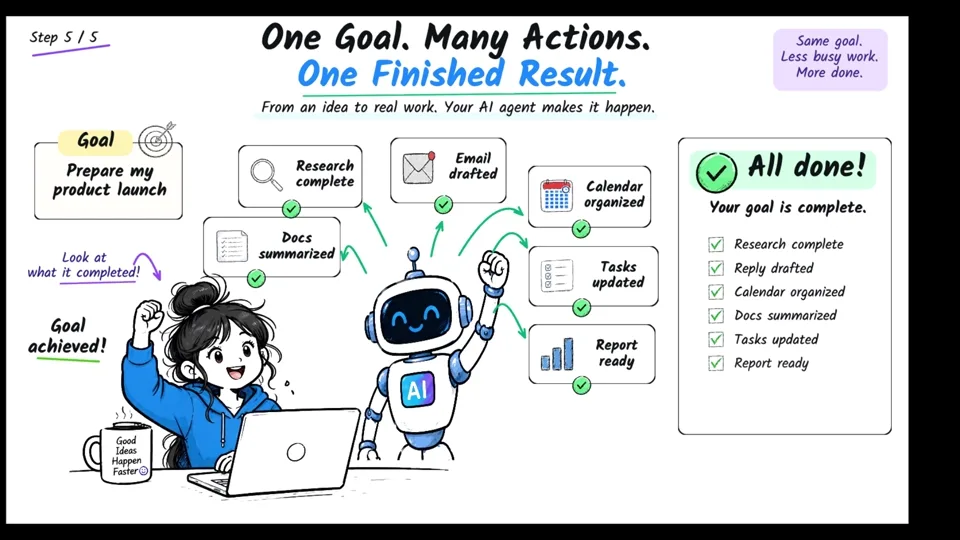
Modern Whiteboard · AI
- Duration
- 2:44
- Scenes
- 5
- Objects
- 489
- Canvas
- 1672 × 941, 30 authored fps
Techniques: Camera, Narration, Story Beats, Draw Animation, SVG, Smart Lines, Smart Arrows, Text Animation, Multi Scene.
The project card links to the official finished video and opens the editable Example Project in Scribe Animator. Its project walkthrough and curated source-asset pack let you inspect the actual scene and reuse selected visuals. This is an example to study, not a fixed camera or timing preset for your own reference.
Related resources
- Site tools quickstart and AI agents and WebMCP
- Scribe Animator Director for original whiteboard/explainer production and the 2.0.0 package prerequisites
- Example Projects and the AI Agents project walkthrough
- SVG and vector import and Smart Lines and Arrows
- Camera and paths, StoryBeats, and timeline and motion
- Voiceover and sync
Verification note
Reviewed on 7 October 2026 against the current capability schemas and regression coverage for composition, connector evaluation, fixed-camera history, SVG batches, and preview readiness. The example links are public product resources. Actual client support, deployed capability availability, live playback, native reopen, and export must be verified in the project you author.