Example Projects
An Example Project is a complete .scribe project you can open in the editor. You can watch its finished video first, then inspect and change the actual scenes, objects, audio, camera, and timing behind that result. The examples below cover whiteboard explanations, a kraft-paper workshop, chalkboard teaching, a blueprint-style API story, and a detailed marketing infographic.
What makes an example different?
| Surface | What it contains | What opening it does |
|---|---|---|
| Example Projects | Immutable public projects with full editable scene and timeline data | Replaces the active workspace after the usual confirmation; you can then edit and save your own version |
| Templates | Reusable block, scene, or project structures | Applies a starting structure to an authoring workflow; see scenes and templates |
| Your Library | Projects you have saved under your own account | Opens your own saved work; see create and manage projects |
| Shared Projects | Projects opened from a share link, where supported | Follows the link's viewing permissions and workflow; see share a project link |
The public example package stays unchanged when you edit your copy. It is not placed in your Library merely because you opened it.
Why open one?
Start by playing the video to understand the story, then inspect one scene at a time. Select an object and compare its entrance with the playhead; a finished frame alone cannot show how the timing was made. Follow camera movement separately from object motion, and inspect how narration, Draw Steps, connectors, and background choices support the explanation. Change one property, replay the scene, and save your own project when the result is useful.
For a focused exercise, pick a technique in a card below. A whiteboard project is useful for draw reveals and camera framing; the blueprint example makes request/response arrows easier to trace; the longer funnel project shows how a sequence of scenes handles a dense story. Each project page gives a more specific reading path.
How to open an example
- On Desktop, choose File → Example Projects. In Mobile Lite, open the Project menu → Example Projects. On first launch, choose Explore Examples. You can also follow an Open editable project link below.
- Browse Explore Example Projects. The gallery loads project information and posters; it does not replace your workspace or download a
.scribepackage just because it opened. - Save your current work if you need it, then choose Open Project on a card. The normal workspace-replacement confirmation protects unsaved changes.
- The chosen project opens paused at scene 1 and time zero. Play it, inspect the timeline, and edit normally.
A deep link highlights the requested card, leaving the current workspace intact until you explicitly open the project. Unknown example IDs fall back to the general gallery.
What happens to my current project?
Opening a selected example replaces the active editable workspace. If the current project has unsaved changes, Scribe asks before proceeding. Save it to your Library or export a .scribe backup first if you want to return to that state. Browsing cards or watching a video does not alter the project. See save, import, and recover projects for the available safety paths.
Available Example Projects
The cards below use the current public catalog for titles, styles, durations, scene and object counts, capability tags, posters, and video links. Choose a project title for a guided walkthrough; use Watch finished video to see its output or Open editable project to inspect its source in Scribe Animator.
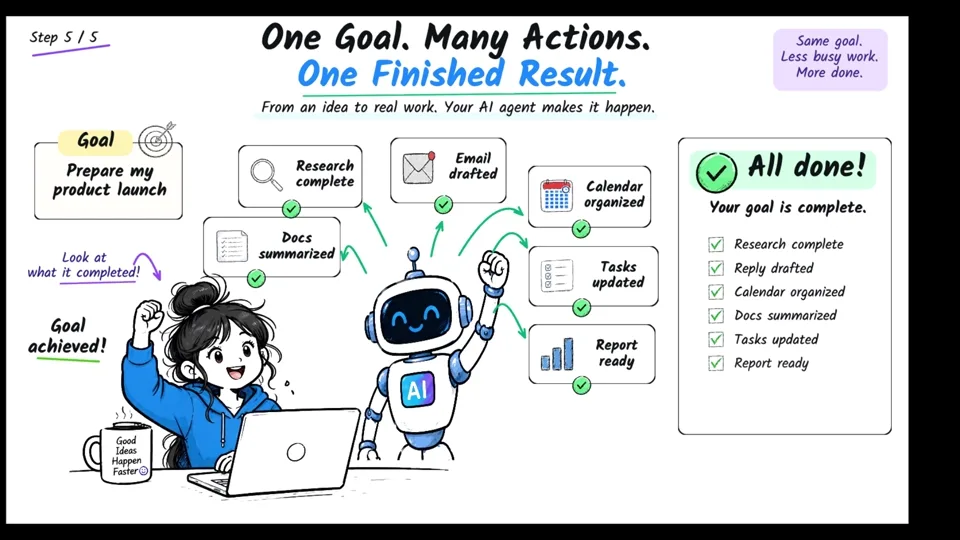
Modern Whiteboard · AI
AI Agents — From Answers to Action
See how AI agents move from answering questions to planning, using tools, taking action, checking results, and completing goals.
2:44 · 5 scenes · 489 objects
Inspect: Camera, Narration, Story Beats, Draw Animation, SVG, Smart Lines, Smart Arrows, Text Animation, Multi Scene.
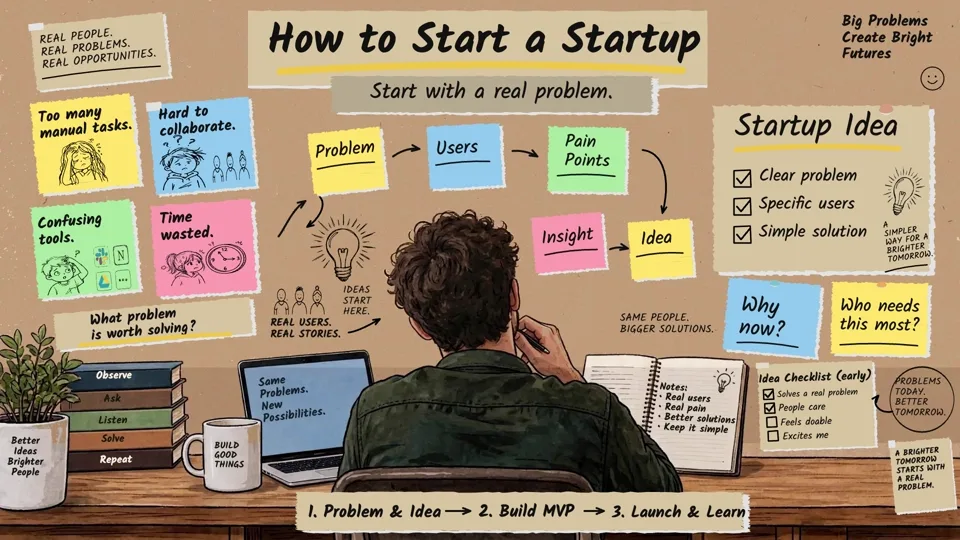
Kraft Workshop · Business
How to Start a Startup
Follow a startup journey from identifying a real problem to building an MVP, learning from users, and improving after launch.
2:50 · 3 scenes · 419 objects
Inspect: Camera, Narration, Story Beats, Draw Animation, SVG, Smart Lines, Smart Arrows, Custom Background, Text Animation, Multi Scene.
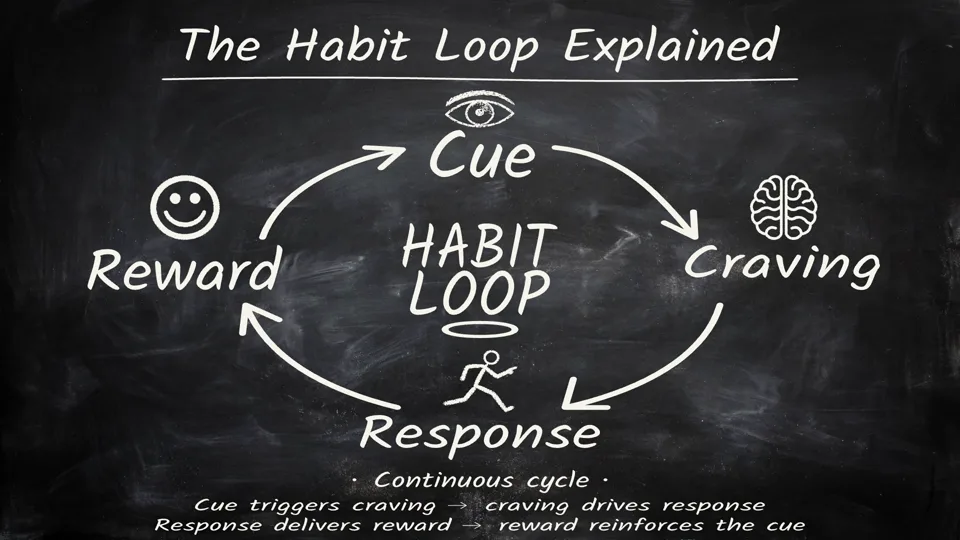
Chalkboard · Education
Why Habits Feel Hard
A chalkboard explainer of the habit loop and how small repeated actions can turn into meaningful progress.
2:46 · 3 scenes · 108 objects
Inspect: Camera, Narration, Story Beats, Draw Animation, SVG, Custom Background, Multi Scene.
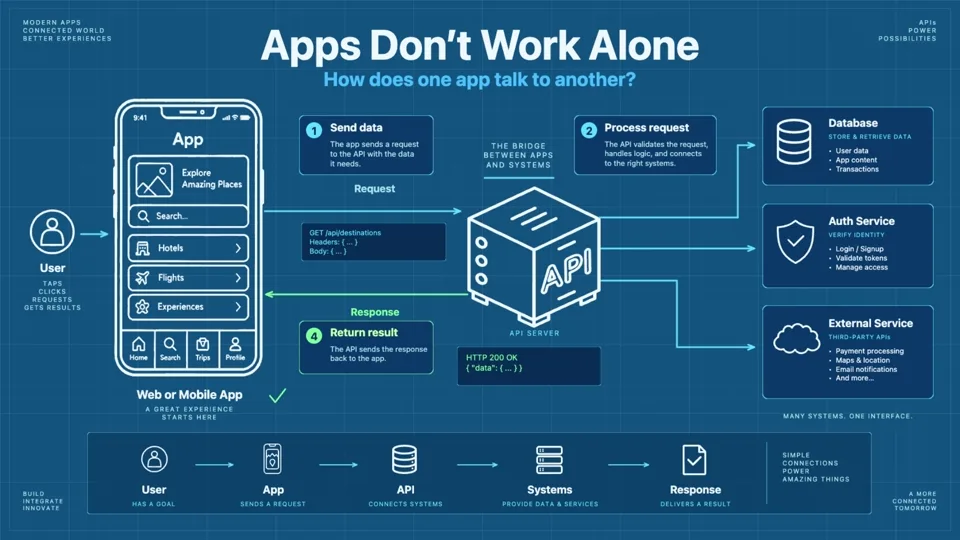
Blueprint · Technology
Apps Don’t Work Alone — How APIs Connect
A blueprint-style explainer showing how an app sends requests through APIs to databases, authentication, and external services.
4:38 · 5 scenes · 549 objects
Inspect: Camera, Narration, Story Beats, Draw Animation, SVG, Smart Lines, Smart Arrows, Text Animation, Multi Scene.
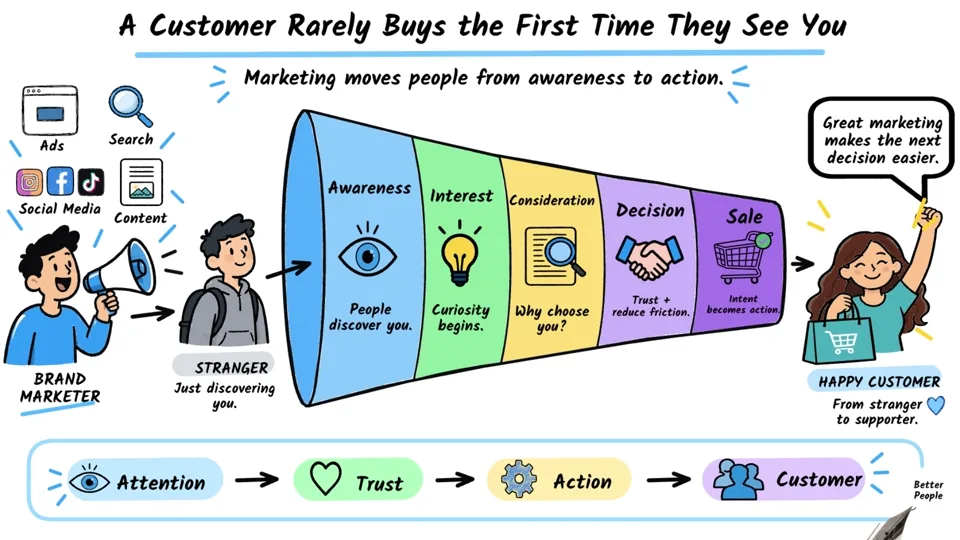
Business Infographic · Marketing
Marketing Funnel — Awareness to Action
A detailed business infographic showing how customers move from awareness through interest, consideration, decision, and action.
5:11 · 6 scenes · 715 objects
Inspect: Camera, Narration, Story Beats, Draw Animation, SVG, Smart Lines, Smart Arrows, Multi Scene, Complex Project.
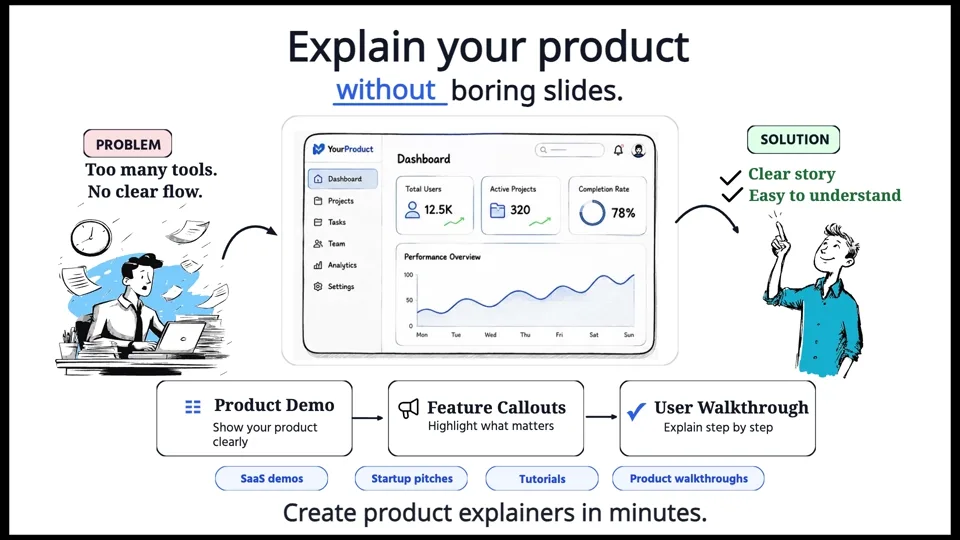
Product Introduction · Getting Started
Scribe Animator Basics
A quick two-scene introduction to how Scribe Animator turns ideas and product explanations into animated stories.
0:22 · 2 scenes · 67 objects
Inspect: Camera, Narration, Draw Animation, SVG, Smart Lines, Smart Arrows, Text Animation, Multi Scene.
Some examples also include a downloadable source-asset pack. It contains curated reusable visuals; the .scribe project remains the complete editable animation. Open a project page to preview the assets and download its ZIP.
Learn by technique
- Camera and framing: track pans, holds, and path following in camera moves and paths.
- Narrative timing: compare scene order and Story Beats with the timeline and motion guide.
- Drawing: inspect reveal order and hand behavior in drawing hands; bring your own geometry through SVG and vector import.
- Voiceover: match clips and visual cues with voiceover and sync.
- Connectors and surfaces: study smart lines and arrows and images and backgrounds.
- Reusable structure: compare full examples with scenes and templates.
Frequently asked questions
Can I edit an Example Project or use one as a starting point?
Yes. The imported project is editable. Change scene content, timing, camera, audio, or styling and save your own version. The immutable public release is not changed by your edits.
Can I save it to my Library?
Yes. Use the editor's normal project save actions when you want your own saved copy. Opening the example alone does not save it to your Library.
Does opening one replace my current project?
Yes, after you select Open Project and pass the usual confirmation. The gallery and video links are safe to browse without replacing anything.
Are these Templates or shared-project links?
No. Templates supply reusable structures; Example Projects are complete public .scribe productions. Share links follow a separate permission and viewing workflow.
Can I export one, and does it work in Mobile Lite?
An opened example uses the normal editor and supported export workflow; available output profiles still depend on your platform and plan. Mobile Lite exposes the same examples in its Project menu with a responsive gallery. See choose an export and Mobile Lite.
Is the YouTube video the editable source?
No. The video is the finished playback. Opening the .scribe example provides editable objects, scene structure, audio and timing so you can learn how that playback was built.