How AI agents work: From Answers to Action
An assistant can answer a question. An agent has to carry a goal through several actions, check what happened, and adapt. This modern whiteboard explainer tells that distinction as a sequence rather than a single diagram. The finished video is useful for the concept; the editable project shows how its visual pacing was made.
Project at a glance
Modern Whiteboard · AI
- Duration
- 2:44
- Scenes
- 5
- Objects
- 489
- Canvas
- 1672 × 941, 30 authored fps
Techniques: Camera, Narration, Story Beats, Draw Animation, SVG, Smart Lines, Smart Arrows, Text Animation, Multi Scene.
Follow the five-scene story
- “AI agents don’t just answer. They act.” establishes the move from reply to action.
- “Give it a goal.” turns a vague request into an outcome the agent can work toward.
- “It Uses the Right Tools” shows concrete tool categories such as web search, documents, and email. Notice how labels and connectors make separate systems readable.
- “Check. Adapt. Try Again.” treats feedback and iteration as part of the work, rather than assuming the first action is perfect.
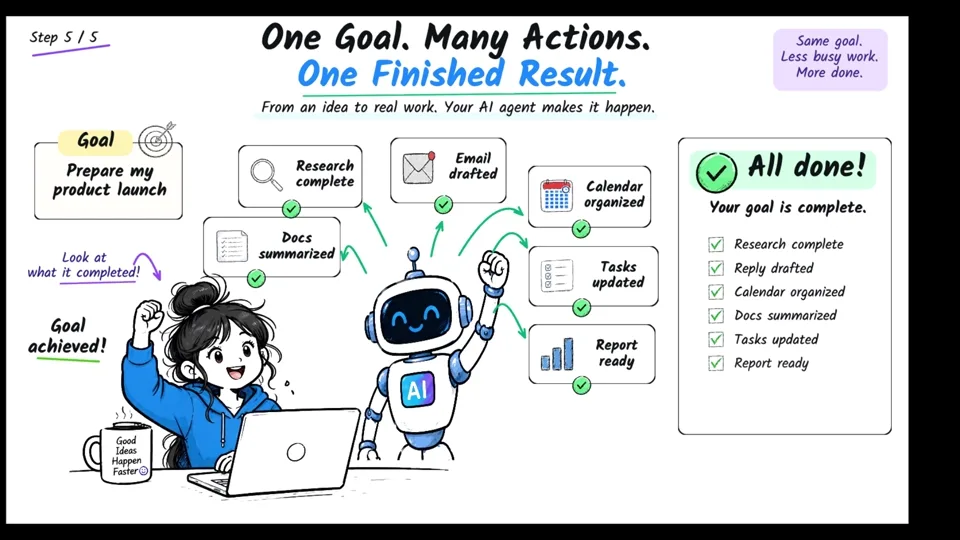
- “One Goal. Many Actions. One Finished Result.” returns to the initial goal and summarizes completed work.
The scene titles and sequence come from the public .scribe package. Explore their transitions and the balance between title copy, supporting labels, and drawn paths before changing anything.
What to inspect in Scribe Animator
Open scene 3 and follow one tool label across the timeline. Compare its entrance with the nearby vector path and narration; the animation is easier to understand when you pause before and after the draw reveal. In scene 4, step through the check/adapt/retry composition and ask whether the camera framing keeps the current action in view. Scene 5 is useful for studying how several completed actions resolve into one outcome.
Try moving one label's start time, then replay the scene. To learn the underlying controls, use timeline and motion, drawing hands, camera moves, SVG/vector import, and voiceover sync.
Want to build a scene from a supplied reference and source assets? Follow the WebMCP reference reconstruction workflow.
Assets used in this project
These 12 curated source visuals are useful for building your own scenes. The asset pack is separate from the complete editable .scribe project, which already contains the animation, objects, audio, and timing.








Download source assets (.zip) 1526 KB · PNG, SVG
Watch the finished video and open the source
Use Watch finished video above for the official channel's How AI Agents Work: From Answers to Action. Then choose Open editable project to highlight this example in the editor gallery. Opening the gallery preserves your workspace; selecting Open Project invokes the normal unsaved-work confirmation. The video is the published output, while the .scribe package contains editable objects, scenes, audio, and timing.
Return to the Example Projects guide to compare this whiteboard style with other examples.