Generate a local music bed
Generate Music composes and renders instrumental background audio locally. Use it for a repeatable music bed under an explainer or a short scene. Choose a style, mood, intensity, duration, and variation seed; Scribe produces an audio source that can enter the normal MUSIC timeline workflow.
This is procedural synthesis. It does not download a music model, call an external music service, generate lyrics, or record a voice. AI voiceover has separate model, language, runtime, and consent requirements.
Generate Music is available through the Desktop panel and supported Desktop agent capabilities. Mobile Lite has no matching generator control; use its scene audio workflow for a WAV. A Desktop project-wide MUSIC/VOICEOVER clip can be moved into its starting scene and end-trimmed when opened in Mobile Lite. Keep a Desktop backup and check transitions before handing off a multi-scene bed. See the experience and audio comparison.
Before you start
- Open the intended project and scene and save important work.
- Establish the scene durations before generating music for the entire project.
- For narration, use tracks with the VOICEOVER role; music belongs on MUSIC tracks. Roles drive ducking behavior.
- Keep enough browser storage and memory for the generated audio. A duration must be between 2 and 180 seconds, including project- or scene-derived lengths.
- Use a browser that supports the local renderer. An unsupported browser shows an error and disables generation.
1. Open the real generator
Choose Audio in the left content rail, then Generate Music. You can also open Tools → Advanced Audio Editor → Generate Music, the route used for the Miso example below. A private library sign-in message does not prevent opening the local generator.
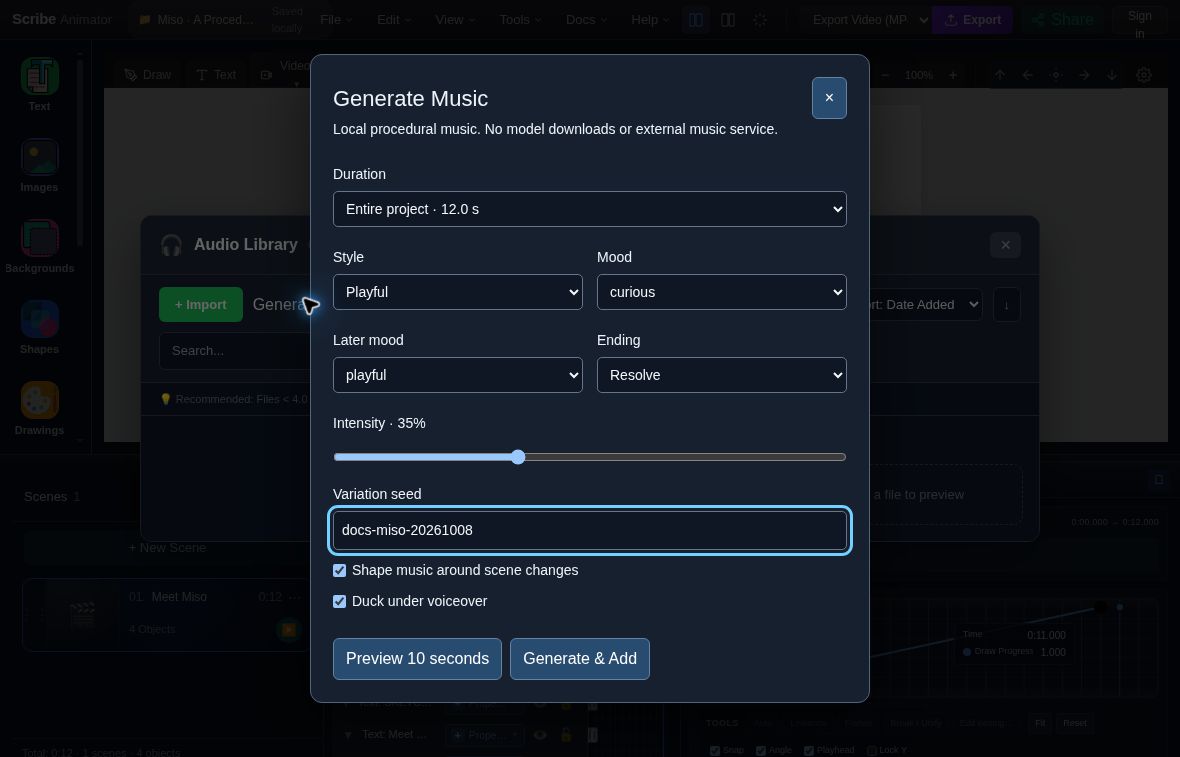
- DurationEntire project resolves to 12.0 seconds in this example.
- Musical intentPlayful style, curious → playful moods, and Resolve ending define this brief.
- Intensity and seedUse 35% intensity and docs-miso-20261008 for this supplied brief.
- Scene shaping and duckingThe checked options plan scene cues and enable MUSIC ducking under VOICEOVER.
- Generate and insertGenerate & Add creates the full result and inserts a MUSIC clip; Preview 10 seconds is separate.
2. Set duration and musical intent
| Control | Choices and effect |
|---|---|
| Duration | Entire project, Current scene, or Custom. The active scene is offered when available. Project/custom music inserts at project start; Current scene inserts at that scene's start. |
| Seconds | Appears for Custom; 2–180 seconds in 0.1-second UI increments. |
| Style | Minimal, Cinematic, Playful, Corporate, Lofi, or Chiptune. |
| Mood | calm, curious, hopeful, playful, inspiring, nostalgic, tension, or triumphant. |
| Later mood | Keep mood or one of the same moods; requests a later mood in the planned composition. |
| Ending | Resolve or Soft. |
| Intensity | 0–100%; changes the arrangement rather than serving as the timeline volume control. |
| Variation seed | A 1–64-character seed using letters, numbers, underscore, period, colon, or hyphen. |
| Shape music around scene changes | Includes scene-boundary cues in the composition brief. It does not edit scene durations or retime narration. |
| Duck under voiceover | Sets the shared automatic MUSIC ducking option on timeline insertion. It does not change the generated WAV. |
Style selects a preset tempo range, instruments, and rhythm settings. Audition Preview 10 seconds early against your narration and scene pacing, then adjust Style, Mood, or Intensity before generating the full track.
The same resolved brief, seed, and runtime revision reproduce its deterministic composition. Changing project duration or scene cues changes the brief even when the seed stays the same. There is no current GUI tempo field; supported agent schemas expose additional bounded planning inputs.
3. Preview, generate, and place
- Choose Preview 10 seconds. Scribe renders up to ten seconds from the brief, without adding timeline audio.
- Use the generated audio player's controls to audition it. A browser may need a user gesture before playback. A visual waveform alone does not prove sound.
- Change the brief or use Regenerate Variation for another seed. Changing musical options clears the old result so it cannot be inserted as the new brief.
- Choose Generate & Add for the full duration. Follow progress; use Cancel generation if necessary. Closing the dialog cancels active work.
- Wait for Music added to the timeline. The inserted clip uses MUSIC role and the selected project/scene placement.
- Full results also expose Add to timeline and Save to Audio Library. The latter saves locally; it does not upload to a private cloud library.
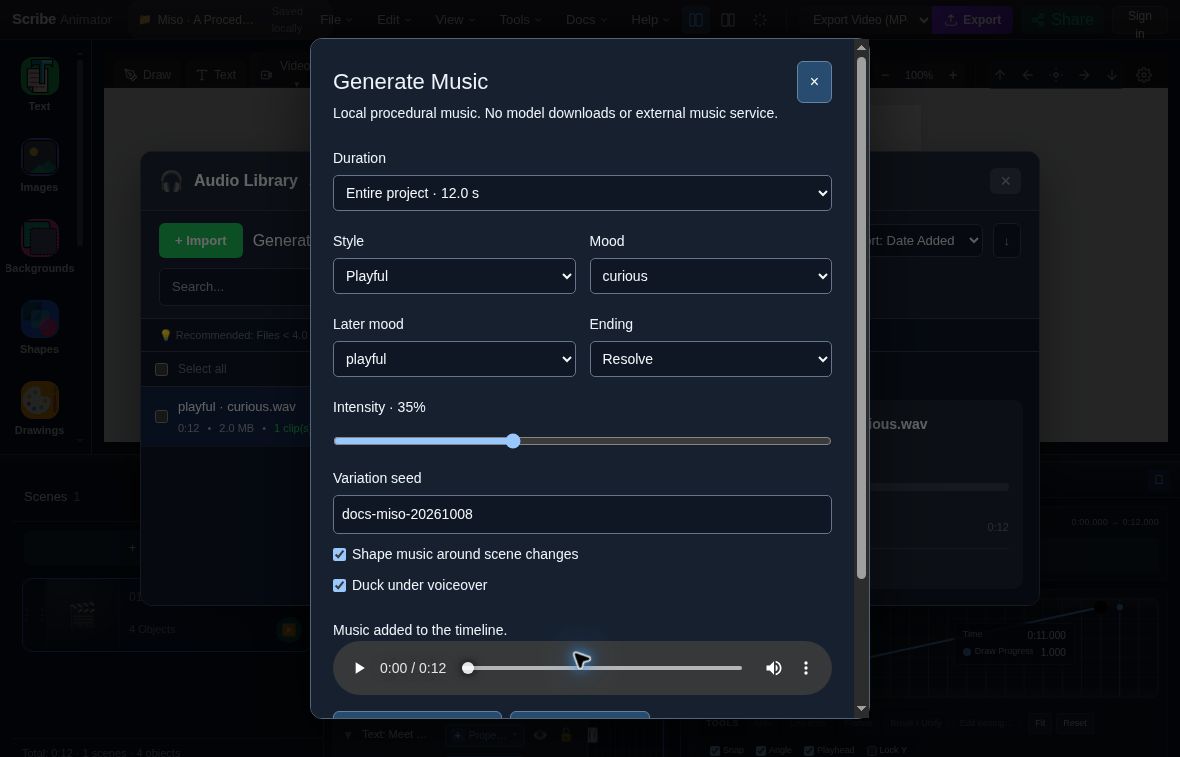
- Insertion confirmationThe dialog states Music added to the timeline.
- Actual generated resultThe player references the completed 12-second local render. Listen to it before judging the music.
Repeated insertion of the same locally generated result at the same unchanged default placement can reuse its source/clip. Check the timeline before adding again, especially after moving or trimming a clip. A new variation is a new result. Library-only saving needs a separate timeline insertion when you want it to play in the project.
4. Mix under narration and review delivery
Close the generator and inspect the Audio lanes. Adjust the MUSIC track gain and play through every active VOICEOVER interval and the gaps around it. Ducking uses VOICEOVER clip intervals; it does not detect speech or silence within a clip. An imported narrator on a GENERIC track will not supply those intervals.
Automatic ducking is a shared audio setting, so inspect existing MUSIC tracks when changing it. Muting a track, gain, trimming, and clip placement remain normal audio edits. Later scene edits do not automatically regenerate a fitted music bed. Regenerate deliberately after timing changes and review the new ending.
Clip fades are separate authored controls. The export routes reviewed here do not establish fade-envelope parity for every encoder. Do not promise a delivered fade solely because fade metadata is stored; inspect a short actual MP4 on the target platform. MUSIC/VOICEOVER ducking has separate playback/mix regression coverage. See Choose an export.
5. Keep an editable, portable copy
Generated music retains its brief, recipe, seed, renderer/runtime provenance,
and audio bytes. Local checkpoints and supported .scribe packaging preserve
the authored source and MUSIC placement. Save to Audio Library is explicitly
browser-local. Clear browser storage only after saving a portable copy.
Importing a package retains provenance but does not prove it was generated on the receiving device. The generator does not guarantee an exclusive composition or make a rights claim for imported audio. Use save and recovery and reopen the package before treating it as an editable handoff.
Worked example: generate music for Miso
Open the original Miso project (.scribe) from the procedural drawing walkthrough. Its one scene lasts 12 seconds. Finish scene timing before asking the generator to fit the project.
- Choose Tools → Advanced Audio Editor → Generate Music.
- Set Entire project · 12.0 s, Style Playful, Mood curious,
Later mood playful, Ending Resolve, Intensity 35%, and
Variation seed
docs-miso-20261008, as pictured above. - Leave Shape music around scene changes and Duck under voiceover checked. This example has no narration clip, so the checkbox does not demonstrate an audible ducking result.
- Choose Generate & Add and wait for Music added to the timeline.
- Close the generator and Audio Library. Confirm one Music clip; the generated source lasts 12 seconds and its project offset is 0.0 seconds.
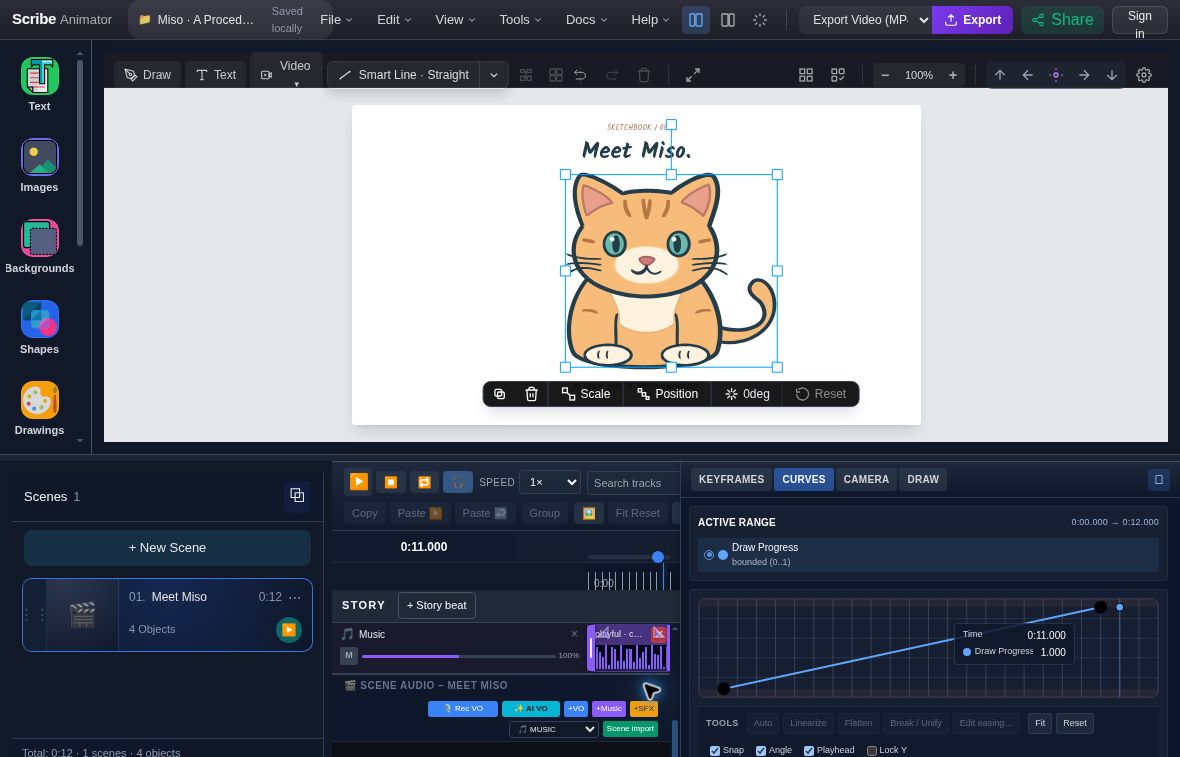
- Music clipClose the generator and Audio Library to inspect the inserted clip and track controls.
- Audio roleMUSIC is the intended role for this background bed; narration uses VOICEOVER.
Download the actual audio and portable result
- Generated Miso WAV (2.0 MiB): 12 seconds, stereo, 44,100 Hz, 16-bit PCM.
- Actual generation metadata JSON: the brief, recipe, seed, and renderer/runtime record from this local generation.
- Complete Miso project with position revision and music (.scribe, 1.9 MiB): X 720 for the cat, original drawing ink, three hand/pen PNGs, and the exact WAV above.
- Checksums for the example files.
Audition it yourself. The capture review checked generation, clip placement, WAV bytes, and portable reopening. It did not include a listening audition or a musical-quality judgment.
The complete portable revision reimports the WAV as an uploaded MUSIC source. It embeds identical audio bytes and the clip placement, while the generation brief and seed remain in the separate metadata download. Keep that sidecar when you need the generation record.
Verify the portable handoff
Export .scribe while the project's assets are available, then use
File → Import .scribe to reopen the actual file. For this supplied project,
confirm the cat at X 720, a partial hand draw at 3.500 seconds, and the MUSIC clip
at project start. The complete download passes the current package importer
with zero warnings and no missing runtime assets.
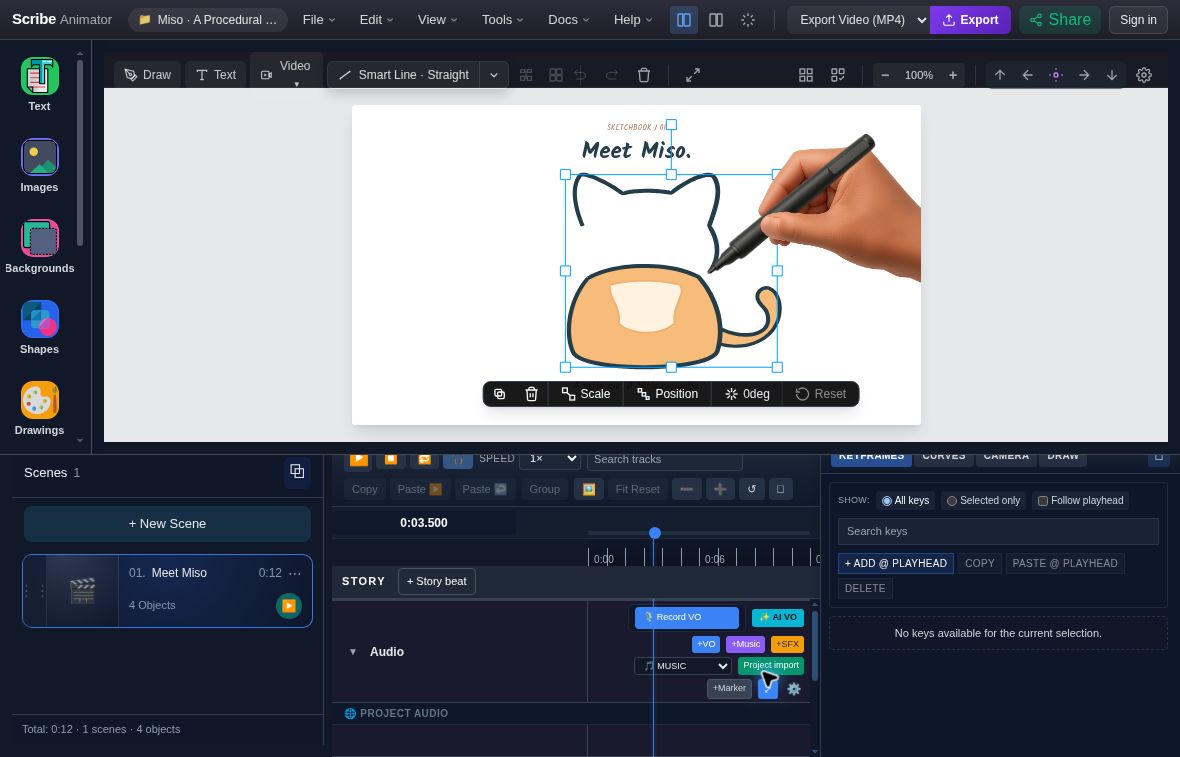
- Reopened hand assetsThe portable file includes three hand/pen PNGs alongside the actual WAV.
- Partial-draw frameThe reimported scene is paused at 0:03.500.
During this captured session, hand-asset blob references expired after a local reload and an intermediate export missed those assets. The supplied complete download was rebuilt from a fresh source import plus the actual generated WAV, then reimported and checked. Treat a warning or missing hand as an incomplete handoff: return to a known complete source and verify the next export.
When importing the WAV separately, first move the project playhead to 0:00. Ordinary audio-file import uses the current playhead; importing later can shift the bed away from the intended project start.
Expected result and verification
- A completed full render has a usable preview and the intended MUSIC clip.
- Project or scene scope and start time match the chosen Duration mode.
- The same brief/seed remains inspectable after save/reopen.
- Narration stays audible during VOICEOVER intervals and music returns in gaps.
- A regenerated bed follows the revised duration and ending.
- A target-platform video test contains the intended mix and ending.
Limits and troubleshooting
| Symptom | Recovery |
|---|---|
| Project/scene duration is invalid | Choose 2–180 seconds or Custom; do not shorten scenes accidentally just to generate music |
| Unsupported renderer | Use a supported Desktop browser; imported audio is another normal audio workflow |
| Preview has no timeline clip | Preview is an audition; generate the full result before insertion |
| No ducking | Check MUSIC/VOICEOVER roles, track mute/gain, active clip intervals, and the shared automatic ducking setting |
| Too much music under narration | Lower track gain or choose lower intensity and a sparser style; preview the real mix |
| Memory or persistence error | Preserve the project, free storage or reduce duration, then retry and verify the saved clip |
| Stale/cancelled job | Generate again from the current brief; never insert an assumed latest result from another job |
| Scene timing changed | Regenerate with the new duration/cues and inspect placement before removing the earlier clip |
Related workflows and Product UI verification
- Voiceover, audio roles, and synchronization
- Scene timing
- Save, import, and recover
- Offline and cloud boundaries
Dialog labels, a ten-second preview, full 15-second generation, timeline insertion, local-library saving, and reload were checked in the signed-out Desktop editor on 7 October 2026. The screenshots here add an actual deployed Desktop Miso walkthrough captured on 8 October 2026 at 1180 × 757: 12-second generation, insertion, exact WAV bytes, and complete native reimport. The observed deployment's repository commit was not verified. Source/tests cover provenance, persistence, and ducking. These checks do not certify listening quality, audible ducking in the narration-free sample, Mobile Lite generation, native-device video export, or every encoder's clip fades.